Why Microsoft 365 Backup Still Matters in 2026
Microsoft 365 is trusted by millions of businesses worldwide to store email, documents, and team communications. But a question that comes up repeatedly — especially after a data loss incident — is: does Microsoft actually back up my data?
The short answer is: not in the way most businesses assume. This guide explains exactly what Microsoft protects, what it doesn’t, and what a sound Microsoft 365 backup strategy looks like in 2026
“Isn’t Microsoft Already Backing Up My Data?”
This is one of the most common assumptions businesses make — and one of the most costly.
Microsoft does an excellent job of protecting its infrastructure. Their data centres are highly redundant, with failover systems, geographic replication, and strong uptime guarantees. If a Microsoft server fails, your data stays available. That’s infrastructure protection, and Microsoft handles it very well.
What Microsoft does not guarantee is granular, point-in-time recovery of your data — especially when the loss originates from user actions rather than infrastructure failure.
The confusion stems partly from Microsoft’s Shared Responsibility Model. Microsoft is responsible for keeping the platform running. You are responsible for the data that lives on that platform.
Here are the situations where this distinction matters most:
- Accidental deletion — A user permanently deletes emails or files, often without realising it.
- Insider mistakes — An admin misconfigures a retention policy or a team member empties a shared mailbox.
- Ransomware syncing to the cloud — Encrypted files on a local device can sync to OneDrive before the attack is detected, overwriting clean versions.
- Retention policy expiration — Data that ages out of a retention window is gone permanently.
- Malicious overwrites — A disgruntled or departing employee deliberately deletes or alters files.
None of these are covered by Microsoft’s infrastructure guarantees. Without a dedicated backup solution, recovery from these scenarios is either limited or impossible.
What Microsoft 365 Protects vs What It Doesn’t
Understanding the boundary of Microsoft’s responsibility is the clearest way to evaluate your risk exposure.
| Microsoft Handles | You Are Still Responsible For |
|---|---|
| Infrastructure uptime | Long-term data backup |
| Service availability | Granular, item-level recovery |
| Hardware redundancy | Ransomware recovery |
| Data centre resilience | Legal and compliance retention |
| Platform maintenance | Recovery from user deletion mistakes |
This distinction is not a criticism of Microsoft — it reflects the standard model for cloud services. The platform provider keeps the platform running; the customer manages and protects their data within that platform.
The practical implication: if an employee deletes their entire inbox and empties the deleted items folder, Microsoft’s infrastructure is functioning perfectly — but your data may still be gone.
Common Ways Businesses Lose Microsoft 365 Data
Data loss in Microsoft 365 is more common than most organisations expect, and it rarely looks like a dramatic event. It usually happens quietly.
Employee accidental deletion — The most frequent cause. Files, emails, and Teams messages are deleted without realising they’ll be difficult to recover after the recycle bin retention period ends.
Shared mailbox cleanup — Admins or team members clearing shared mailboxes often don’t realise the data is not individually backed up elsewhere.
OneDrive sync overwrite — A corrupted or incorrect local file syncs to OneDrive, replacing a clean version. Depending on timing and version history settings, the clean version may not be retrievable. This is one of the more common triggers for OneDrive backup conversations.
Ransomware-encrypted synced files — If ransomware encrypts files on a local device before the attack is identified, OneDrive may sync the encrypted versions, overwriting good data.
Departed employee account deletion — When an employee leaves and their account is removed without proper archiving, all their emails, OneDrive files, and Teams messages can be permanently lost.
Retention policy misunderstandings — Businesses assume retention policies function like backups. They don’t — and misconfigured policies can cause data to be deleted on a schedule the team wasn’t aware of.
SharePoint version cleanup — SharePoint keeps a version history, but older versions can be purged by admins or through automatic cleanup, and this is not reversible without a dedicated SharePoint backup solution.
Insider threats — Deliberate deletion or data exfiltration by a current or outgoing employee is a recognised risk that Microsoft 365’s native tools are not designed to fully address.
Native Microsoft 365 Retention Limitations
Microsoft 365 includes several built-in tools that can look like backup — recycle bins, version history, retention policies — but each has important limitations.
Recycle bins are not backups. The Deleted Items folder and the Recoverable Items folder in Exchange have a limited retention window (typically 14–30 days, depending on your licence and settings). Once that window closes, the data is gone. The same applies to SharePoint and OneDrive recycle bins.
Retention policies are not immutable backups. Retention policies tell Microsoft 365 how long to keep data before it’s eligible for deletion. They are compliance tools — useful for legal hold and regulatory requirements — but they don’t create a separate, restorable copy of data. A file that’s overwritten and then ages out of a retention window may still be permanently lost.
Version history has limits. SharePoint and OneDrive do store previous versions of files, but the number of versions stored is configurable and finite. They can also be deleted by admins, and they don’t protect against accidental deletion of the file itself.
Correct configuration is not guaranteed. Even where native tools exist, they only work if they’ve been set up correctly. Many businesses discover gaps in their retention configuration only after they need to recover something.
The key point is not that Microsoft’s native tools are inadequate — it’s that they are designed for availability and compliance, not for the kind of granular, point-in-time, independent recovery that a true backup provides.
What a Proper Microsoft 365 Backup Solution Should Include
A dedicated Microsoft 365 backup solution should complement Microsoft’s native tools, not replace them. Here’s what to look for:
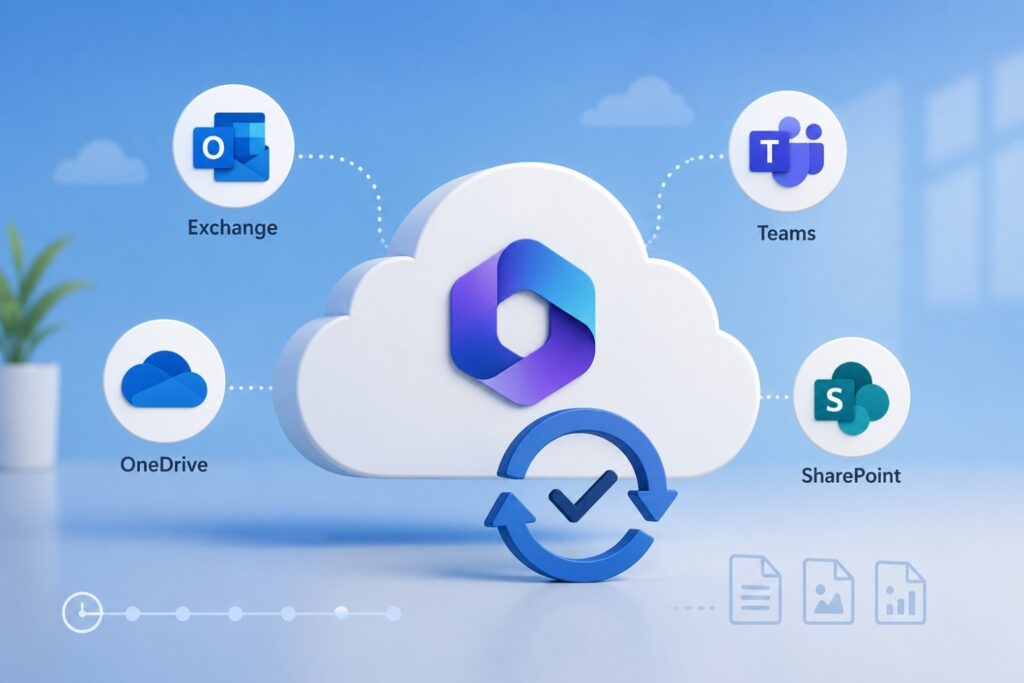
Exchange Online backup — Full mailbox backup, including calendar, contacts, and tasks. Essential for recovering individual emails, entire mailboxes, or mailboxes belonging to departed employees.
OneDrive backup — Independent copies of files stored in OneDrive, separate from Microsoft’s sync infrastructure. Critical for recovering from overwrite events or ransomware. See our OneDrive backup guide for a full breakdown of what this covers.
SharePoint backup — Site-level and document-level backup for SharePoint Online, including permissions and metadata where possible. Our SharePoint backup guide covers the specific recovery scenarios this addresses.
Microsoft Teams backup — Channels, conversations, and files shared within Teams. Teams data is distributed across Exchange, SharePoint, and OneDrive, so this requires a solution that covers all three. This is one reason a comprehensive Microsoft 365 backup approach is more effective than backing up individual services in isolation.
Point-in-time restore — The ability to restore data to a specific date and time. This is what separates a true backup from a recycle bin.
Granular restore — Restoring a single email, file, or folder without having to restore an entire mailbox or site. This is essential for practical, day-to-day recovery.
Long-term retention — Storage that extends well beyond Microsoft’s native retention windows — often 1, 3, or 7 years depending on your industry requirements.
Ransomware recovery — The ability to identify a clean recovery point before an encryption event and restore to that point quickly.
Cross-user restore — Restoring data from one user’s account into another, useful when an employee’s account has been deleted and their data needs to be handed to a colleague or manager.
Realistic Recovery Scenarios
Understanding how backup works in practice is more useful than abstract descriptions. Here are situations where Microsoft 365 backup proves its value:
Recovering deleted Teams files — A project team’s shared files are accidentally deleted from a Teams channel. With a backup solution, the files are restored to their last backed-up state within minutes, with no data loss beyond the backup interval.
Restoring OneDrive after ransomware — Ransomware encrypts files on a laptop, which sync to OneDrive before IT is notified. A dedicated OneDrive backup with a pre-attack recovery point allows OneDrive to be restored to a clean state from the previous day.
Recovering a former employee’s mailbox — A sales manager leaves the company. Their Microsoft 365 account is deleted before their email archive is exported. A backup solution retains the mailbox data independently, allowing the account contents to be restored and assigned to their replacement.
Restoring after a SharePoint permissions mistake — An admin accidentally deletes a key SharePoint document library. Native recycle bin retention has already expired. A SharePoint backup solution allows the library to be restored from a point-in-time snapshot.
In each scenario, the common thread is that the recovery need arose from a user or admin action — not a platform failure — and native Microsoft 365 tools were insufficient.
How Often Should Microsoft 365 Be Backed Up?
Backup frequency should reflect how quickly your business generates data it cannot afford to lose.
For most SMBs, a daily backup with 30–90 days of retention covers the vast majority of recovery scenarios. Most data loss events are discovered within a few days, and daily backups provide a clean restore point.
For enterprise environments with high-volume email or active document collaboration, more frequent backups — or continuous backup — may be appropriate. The cost of losing a day’s worth of data may outweigh the cost of more frequent backup cycles.
For regulated industries, retention requirements often dictate backup strategy more than operational needs:
- HIPAA (healthcare) typically requires 6-year data retention for certain records.
- Financial services regulations (such as SEC Rule 17a-4) require immutable records with specific retention periods.
- Legal hold requirements may mean certain data needs to be preserved independently of normal deletion cycles.
If your organisation operates under any regulatory framework, your backup solution should be aligned with those requirements — not just with operational convenience.
Signs Your Current Protection Strategy Is Weak
It’s worth auditing your current approach against these indicators:
- You’ve never tested a recovery. If you haven’t verified that your backups can actually be restored, you don’t know they work.
- You’re relying only on recycle bins. Native deletion recovery has time limits. If your only plan is the recycle bin, you have a window of days — not months.
- You have no immutable backups. Backups stored in the same environment as the data they protect can be affected by the same ransomware or admin error.
- Departed employee data isn’t retained. If deleting a user account also removes their data, you have a regular data loss risk tied to staff turnover.
- You have no ransomware rollback process. Knowing that ransomware can affect cloud-synced files, you should have a tested plan for identifying a clean restore point and executing recovery quickly.
- Your retention policies haven’t been audited recently. Misconfigured policies can cause data to be deleted on a schedule you’re not aware of.
Frequently Asked Questions
Does Microsoft 365 automatically back up data? Microsoft backs up its infrastructure to ensure service availability, but it does not provide granular, point-in-time backup of customer data. Data loss caused by user actions — deletion, overwrite, ransomware — is the customer’s responsibility to protect against.
Is OneDrive version history enough? Version history is useful for recovering previous versions of an edited file, but it has limitations: versions can be deleted, the number of stored versions is finite, and it doesn’t protect against deletion of the file itself. It is not a substitute for independent backup.
Can ransomware affect Microsoft 365 files? Yes. If ransomware encrypts files on a local device and those files are synced to OneDrive or SharePoint, the encrypted versions can overwrite clean copies in the cloud. A backup solution with a pre-infection restore point is the standard way to recover from this.
How long does Microsoft keep deleted emails? By default, deleted emails move to the Recoverable Items folder and are retained for 14 days (this can be extended to 30 days with certain licences or policies). After that, the data is purged. Retention policies can extend this, but they need to be configured correctly.
What happens when an employee account is removed? When a Microsoft 365 account is deleted, its data — mailbox, OneDrive files, Teams messages — is retained for a limited period (typically 30 days) before being permanently removed. If the data isn’t exported or archived before deletion, it may be unrecoverable.
Is a retention policy the same as a backup? No. A retention policy controls how long Microsoft 365 keeps data before it’s eligible for deletion. It is a compliance tool, not a backup. It does not create an independent, restorable copy of data, and it won’t protect against overwrite scenarios or help with granular item-level recovery.
Can SharePoint files be recovered after permanent deletion? SharePoint has a two-stage recycle bin (site recycle bin, then site collection recycle bin) before data is permanently deleted. Once data leaves both recycle bins — typically after 93 days — it cannot be recovered through native Microsoft 365 tools. A third-party backup solution can restore from a point-in-time snapshot taken before the deletion.
Thinking About Next Steps
If you’re reviewing your Microsoft 365 data protection strategy, a good starting point is understanding your current gaps: what data is covered by native tools, where the retention windows end, and whether you have tested recovery processes in place.
For organisations planning migrations or looking to strengthen their Microsoft 365 environment, it’s also worth reviewing how backup integrates with broader data governance — including how data moves between platforms and what happens to it when users or accounts change.
Skymigrate works with businesses on Microsoft 365 data protection, migration, and configuration. If you’re working through any of these areas, our dedicated guides on Microsoft 365 backup, OneDrive backup, and SharePoint backup are good places to go deeper on each workload.