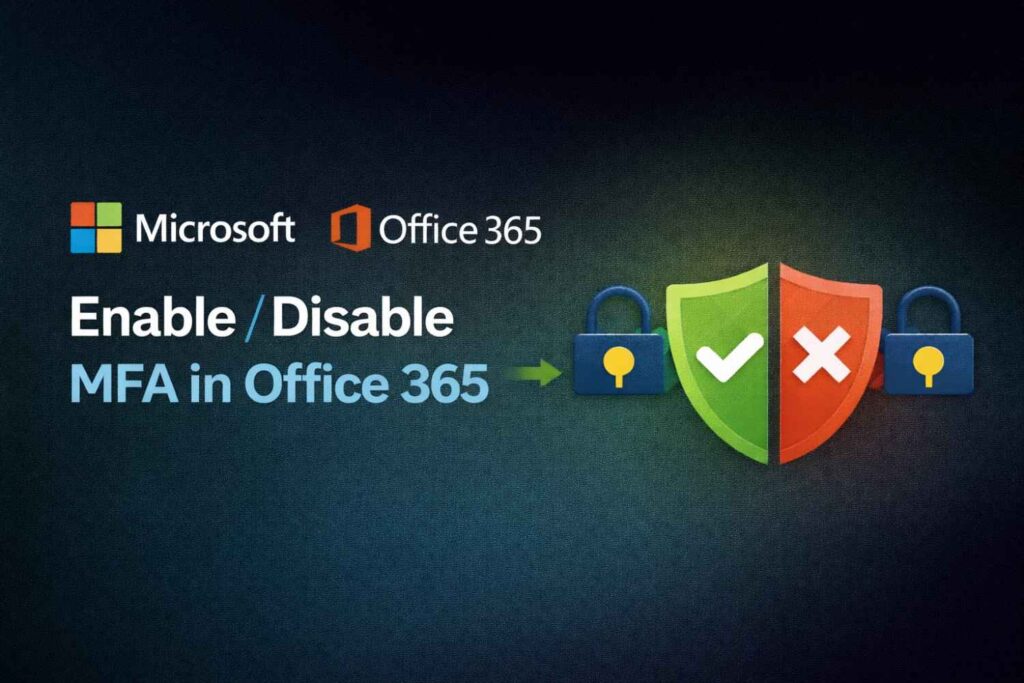
Security is one of the most important reasons for managing email and cloud data. If you’re an admin, understanding how to enable or disable MFA in Office 365 is critical to protecting user accounts from unauthorized access.
Multi-Factor Authentication (MFA) allows an extra layer of security beyond passwords. Even if a password is compromised, attackers cannot access the account without the two-step verification method.
In this guide, we’ll explain:
- How to enable/disable MFA in Office 365 (Microsoft 365)
- How to enable/disable MFA in Office 365 (Microsoft 365) for a user
- How to enable/disable MFA in Office 365 (Microsoft 365) Admin Center
- Best practices for managing MFA securely
What is MFA in Office 365?
MFA (Multi-Factor Authentication) allows users to verify their account login using two or more authentication methods, such as:
- Account Password for login
- One-time passcode (OTP)
- Authenticator app
- Biometric verification etc.
In Microsoft 365 (formerly known as Office 365), MFA is managed through the admin center and identity platform.
How to Enable or Disable MFA in Office 365
If you’re looking for how to enable/disable MFA in Office 365, follow the steps below.
Step 1: Log in to office 365 Admin Center
Go to: https://admin.microsoft.com
Sign in to your Global Admin account.
Step 2: Open Active Users
- Navigate to Users Section in Microsoft admin center
- Click Active Users
Step 3: Open Multi-Factor Authentication Page
- Click Multi-factor authentication (top menu)
From here, you can enable or disable MFA for selected users.
How to Enable/Disable MFA in Office 365 for a User
If you want to manage MFA for a single user employee account, follow these steps:
Enable MFA for a User Account
- Go to the Office 365 Admin Center
- Click Users > Active Users
- Click Multi-Factor Authentication option
- Select the user account
- Click Enable
- Confirm the action
The user will be prompted to configure MFA during their next sign-in.
Disable MFA for a User
If you need to temporarily turn it off the two step verification:
- Go to Users > Active Users
- Click Multi-Factor Authentication
- Select the user
- Click Disable
- Confirm
⚠️ Disabling MFA reduces account security, so only do this for troubleshooting or temporary situations.
How to Enable/Disable MFA in Office 365 Admin Center (All Users)
If you’re searching for how to enable/disable MFA in Office 365 Admin Center for multiple or all users, here’s how:
Enable MFA for All Users
- Open Admin Center
- Go to Users > Active Users
- Click Multi-Factor Authentication
- Select all users (or multiple users)
- Click Enable
- Confirm
Disable MFA for All Users
- Go to Multi-Factor Authentication
- Select all users
- Click Disable
- Confirm
Advanced Method: Using Identity Policies (Recommended)
Instead of enabling MFA manually per user, Microsoft recommends using identity policies inside Microsoft Entra ID.
Steps:
- Go to https://entra.microsoft.com
- Navigate to Protection > Conditional Access
- Click New Policy
- Select All Users
- Under Grant Controls → Select Require Multi-Factor Authentication
- Enable the policy
This approach gives better control and is more secure for organizations.
Why You Should Enable MFA in Office 365
Here’s why enabling MFA is important:
- Prevents phishing attacks
- Protects admin accounts
- Secures remote access
- Reduces risk of data breaches
- Meets compliance requirements
Cyberattacks often target email accounts first. Without MFA, a single stolen password can compromise your entire organization.
When Should You Disable MFA?
Disabling MFA may be required in cases such as:
- User device lost or replaced
- Troubleshooting login issues
- Temporary migration process
- Account recovery
Always re-enable MFA as soon as possible.
Best Practices for Managing MFA
✔ Enable MFA for all admins first
✔ Use app-based authentication instead of SMS
✔ Set up emergency break-glass accounts
✔ Monitor sign-in activity regularly
✔ Use Conditional Access policies for automation
Final Thoughts:
Understanding how to enable or disable MFA in Office 365 is essential for maintaining a secure cloud environment. Whether you need to manage MFA for a single user or configure it for your entire organization through the Office 365 Admin Center, the process is straightforward when done correctly.
Additionally, to safeguard your business data from accidental deletion, ransomware, or retention policy gaps, you can back up your data using the SkyMigrate Office 365 Backup Solution for complete and secure protection.
For stronger protection, always prefer Conditional Access policies inside Microsoft Entra ID rather than manual per-user settings.
Securing your organization starts with identity protection — and MFA is the first step toward a safer Office 365 environment.