Setting up a new inbox shouldn’t feel like a chore. If you’ve just bought an iPhone, switched from Android, or simply want a clean address for your Apple devices, you’re probably wondering how to create an iCloud email account without any hassle.
The good news? It takes less than five minutes, and you don’t need any technical skill to do it. iCloud Mail comes free with every Apple ID, gives you 5GB of storage, and syncs automatically across your iPhone, iPad, and Mac.
In this guide, we’ll walk through every method — iPhone, Mac, PC, and even Android — plus common mistakes to avoid and what to do once your new address is live.
What Is an iCloud Email Account?
An iCloud email account is a free inbox tied to your Apple ID, ending in @icloud.com (or the older @me.com and @mac.com domains). It’s built into every iPhone, iPad, and Mac and works over standard IMAP, so you can also add it to Outlook, Gmail, or Thunderbird.
Beyond email, it connects to Apple’s ecosystem — Contacts, Calendar, Find My, and iCloud Drive all share the same login. That’s the main reason Apple users prefer it over a generic Gmail or Yahoo address.
What You Need Before You Start
Before you create your iCloud email, gather these three things:
- A working Apple ID (or be ready to create one)
- A recovery email or phone number that isn’t already an Apple ID
- A device or browser — iPhone, iPad, Mac, Windows PC, or any web browser
You don’t need to buy anything. iCloud Mail’s base plan, including your email address and 5GB of storage, is free for life.
How to Create an iCloud Email Account on iPhone
This is the most common way people set up iCloud email on phone, and Apple has made it a guided process.
- Open Settings and tap your name at the top.
- Tap iCloud, then select iCloud Mail.
- Tap Create to start a new address.
- Enter the name you want before @icloud.com, or pick one of Apple’s suggestions.
- Tap Next, then Continue to confirm.
- Choose Done to finish, or Import Mail if you want to bring messages from another account.
That’s it — your new address is active immediately and works in the built-in Mail app right away.
Tip: If you’re setting up a brand-new iPhone for the first time, you can create the iCloud address during the initial Apple ID setup screen instead of doing it afterward.
How to Create an iCloud Email Account on Mac
- Click the Apple menu in the top-left corner and choose System Settings.
- Select your name, then click iCloud.
- Choose iCloud Mail and toggle it on.
- Enter the username you want and click Continue.
- Confirm by clicking Create.
Your Mac’s Mail app will sync the new account automatically, usually within a minute.
How to Create an iCloud Email Account on PC
Windows users can’t create iCloud email directly from Settings, but the process is still simple. This covers how to create an icloud email account on pc.
- Open any browser and go to appleid.apple.com.
- Click Create Your Apple ID.
- Fill in your name, birthday, and a current email address for verification.
- When prompted for your username, choose Get a free iCloud email address.
- Set a strong password and finish the security steps (phone verification, security questions, or two-factor authentication).
- Once verified, download iCloud for Windows from Apple’s site if you want Mail synced to Outlook or File Explorer.
Your iCloud inbox is now usable directly through icloud.com/mail in any browser, even without installing anything.
How to Create an iCloud Email on Android
You can’t create the address from an Android phone’s settings, but you can create it through the browser and then use it on Android afterward — this is how to create iCloud email on Android.
- Open Chrome (or any browser) on your Android device.
- Go to icloud.com/mail and sign in, or visit appleid.apple.com to create a new Apple ID with an @icloud.com address.
- Once created, download the iCloud for Google Android app or add the account manually through Gmail’s app using IMAP settings.
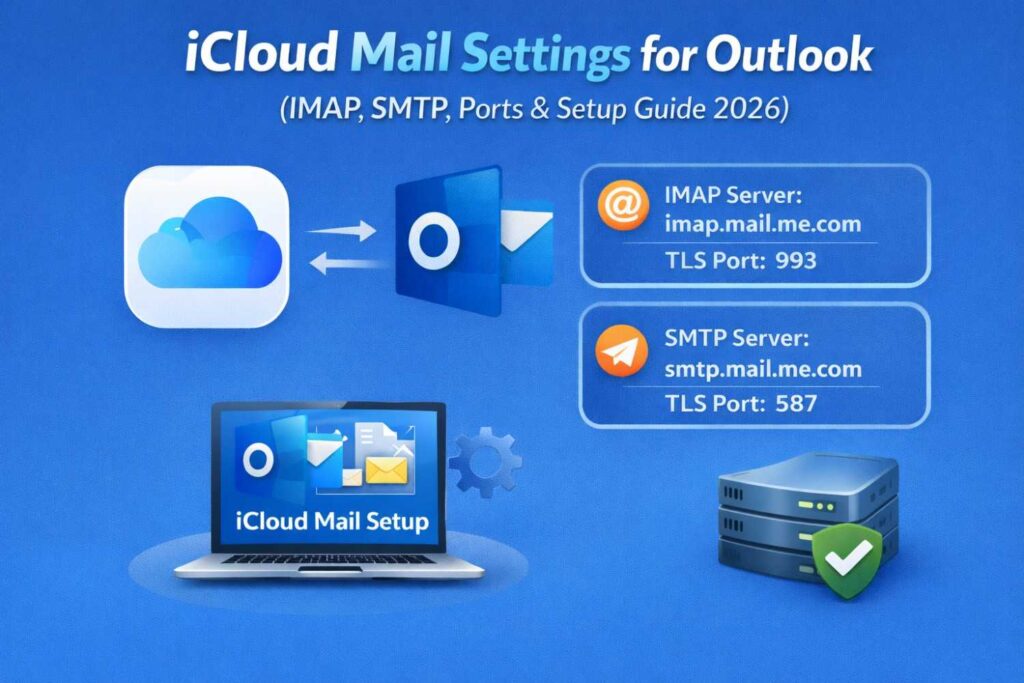
- Use imap.mail.me.com (port 993) for incoming mail and smtp.mail.me.com (port 587) for outgoing mail.
This gives you full push access to iCloud Mail on an Android phone, even though Apple doesn’t officially support two-way sync for Contacts and Calendar there.
Create iCloud Email Without an Apple ID
Technically, you can’t. Every iCloud email address is generated as part of an Apple ID — there’s no way to create iCloud email without Apple ID at the same time, since the address is your Apple ID username. If you’re searching for how to create iCloud com Account without one, what you actually need is to create a new Apple ID first (it’s free and takes under two minutes), and Apple will issue the @icloud.com address as part of that signup.
iCloud Email Address Examples
If you’re unsure what a valid iCloud email address example looks like, here are the accepted formats:
- yourname@icloud.com
- yourname123@icloud.com
- your.name@icloud.com (older accounts only)
- yourname@me.com or yourname@mac.com (legacy addresses, still active if created before 2012)
Usernames must be between 3 and 20 characters and can include letters, numbers, underscores, and periods.
iCloud Mail vs Gmail vs Outlook
| Feature | iCloud Mail | Gmail | Outlook.com |
| Free storage | 5GB | 15GB (shared) | 15GB |
| Best for | Apple ecosystem users | Cross-platform, Google apps | Microsoft 365 users |
| Custom domain support | Yes (iCloud+) | Yes (Workspace) | Yes (Microsoft 365) |
| IMAP/SMTP access | Yes | Yes | Yes |
| Two-factor authentication | Yes | Yes | Yes |
| Android app support | Limited (via IMAP) | Native | Native |
If you already live inside Apple’s ecosystem, iCloud Mail is the more convenient pick. If you switch between Android and Windows often, Gmail or Outlook may integrate more smoothly.
Common Mistakes to Avoid
- Reusing an old Apple ID email instead of getting a fresh @icloud.com address, which limits some Apple ID recovery options.
- Skipping two-factor authentication, leaving the account exposed to takeover attempts.
- Not adding a recovery contact or phone number, which makes account recovery far harder later.
- Assuming iCloud syncs Contacts on Android — it doesn’t, unless you use a third-party workaround.
What to Do After Creating Your iCloud Email
Once your inbox is live, a few housekeeping steps go a long way:
- Turn on two-factor authentication in Apple ID settings
- Add a recovery phone number and email
- Set up Mail, Contacts, and Calendar syncing on all your devices
- Consider iCloud+ if you need more than 5GB of storage
- If you’re moving years of old email into iCloud, or migrating away from it, a managed tool like SkyMigrate can transfer your messages, folders, and attachments without data loss.
FAQs
1. How to create an iCloud email account on iPhone without losing my current Apple ID? You don’t need to change your Apple ID. Go to Settings > [Your Name] > iCloud > iCloud Mail > Create, and Apple will add a new @icloud.com address alongside your existing sign-in details.
2. Can I create iCloud email without an Apple ID? No. iCloud email addresses are generated when you create a new Apple ID. The address becomes your Apple ID username, so the two can’t be separated.
3. How to create a new iCloud account on phone if I already have one? Apple allows one iCloud Mail address per Apple ID. To get a second inbox, you’ll need to create a new Apple ID with a different recovery email or phone number.
4. Is iCloud email free? Yes. The @icloud.com address and 5GB of storage are free forever. Extra storage requires an iCloud+ subscription, starting at a low monthly fee.
5. How to create an iCloud com account on a PC without an Apple device? Visit appleid.apple.com in any browser, choose “Create Your Apple ID,” and select the free iCloud email option during signup. No Apple hardware is required.
6. Why can’t I create the username I want? iCloud usernames must be unique across all Apple users worldwide. If your preferred name is taken, try adding numbers, a middle initial, or a period.
Conclusion
Creating an iCloud email account is quick, free, and works whether you’re on an iPhone, a Mac, a Windows PC, or even Android. Pick the method that matches your device, follow the steps above, and your new @icloud.com inbox will be ready in minutes.
Once it’s set up, the real work is often what comes next — organizing years of old mail, adding it to other apps, or migrating away from a previous provider. If you’re bringing existing email into iCloud or moving off it entirely, SkyMigrate helps individuals and businesses transfer mailboxes safely, with zero data loss and no downtime.
Related Blog Suggestions
- Gmail IMAP Settings: Server, Port, and Setup Guide (2026)
- How to Move Gmail Emails to Another Account Without Losing Data
- Is Hotmail Still Around in 2026? What Happened to Hotmail
- How to Move Emails from Yahoo Mail to Gmail (2026 Guide)
- Zoho Mail Settings (2026): IMAP, SMTP, POP3 & Setup Guide
- How to Export PST from Office 365: A Complete 2026 Guide