Setting up an IMAP email account in Outlook allows you to access your emails from multiple devices while keeping everything perfectly synchronized.
Unlike POP3, which downloads messages to one device, IMAP (Internet Message Access Protocol) stores emails on the server. That means your inbox, sent items, folders, and read/unread status stay consistent across Outlook, webmail, and mobile devices.
In this complete guide, you’ll learn:
- How to configure IMAP in Outlook manually
- The correct IMAP and SMTP settings
- Common connection errors and how to fix them
- Best practices for secure email configuration
Table of Contents
What is IMAP in Outlook?
IMAP (Internet Message Access Protocol) is an email protocol that stores your messages on the mail server rather than downloading them to a single device.
This allows you to access your inbox, sent items, folders, and read/unread status from multiple devices — including Outlook, webmail, and mobile apps — while keeping everything synchronized in real time.
Why IMAP is Better Than POP for Most Users
- Real-time synchronization across devices
- Emails remain on the server
- Preserves folders and sent mail
- Ideal for cloud email systems (Microsoft 365, hosted email, business email)
- Supports backup and migration workflows
If you want to know more about IMAP or POP you can check out What Are IMAP and POP?
For business users and remote teams, IMAP is the recommended email configuration.
What You Need Before Setting Up IMAP Email Account in Outlook
Before adding your IMAP account in Outlook, make sure you have:
- ✔ Your full email address
- ✔ Your account password
- ✔ Correct IMAP and SMTP server settings
- ✔ A stable internet connection
- ✔ Updated Microsoft Outlook application
You can get the correct server settings from your email hosting provider.
How to Add an IMAP Account in Outlook (Step-by-Step)
Follow these instructions to manually configure IMAP in Outlook.
Step 1: Open Outlook and Add a New Account
- Open Microsoft Outlook.
- Click File → Add Account.
- Enter your email address.
- Click Advanced Options.
- Check:
“Let me set up my account manually.” - Click Connect.
Step 2: Select IMAP
When prompted, choose IMAP as the account type.
This ensures your emails remain synced across all devices instead of being downloaded to one computer.
Step 3: Enter IMAP and SMTP Server Settings
Now enter the mail server details provided by your email provider.
Incoming Mail Server (IMAP Settings)
- Server: imap.yourdomain.com
- Port: 993
- Encryption: SSL/TLS
Outgoing Mail Server (SMTP Settings)
- Server: smtp.yourdomain.com
- Port: 465 or 587
- Encryption: SSL/TLS or STARTTLS
Login Details
- Username: Your full email address
- Password: Your email password
Click Next to continue.
Step 4: Complete Setup
Outlook will test your IMAP connection automatically.
If successful:
- Click Done
- Outlook will begin syncing your mailbox immediately
You can now send and receive emails through Outlook using IMAP.
Outlook IMAP Settings (Quick Reference Table)
| Setting | Value |
|---|---|
| Incoming Server | imap.yourdomain.com |
| IMAP Port | 993 |
| IMAP Encryption | SSL/TLS |
| Outgoing Server | smtp.yourdomain.com |
| SMTP Port | 465 or 587 |
| SMTP Encryption | SSL/TLS or STARTTLS |
Common IMAP Setup Errors in Outlook (And Fixes)
Even small mistakes can prevent connection. Here are common issues:
1. Incorrect Password
Double-check your password.
If using app-based security (like Gmail or Microsoft 365), you may need an App Password.
2. IMAP is Disabled
Some providers disable IMAP by default.
Enable it via:
- Webmail settings
- Admin panel
- Hosting control panel
3. Wrong Port or Encryption Type
Using incorrect port numbers will cause connection failure.
Correct values:
- IMAP: 993 (SSL/TLS)
- SMTP: 465 or 587
4. Firewall or Antivirus Blocking Outlook
Security software may block outgoing SMTP connections.
Temporarily disable it and test again.
If successful, whitelist Outlook.
IMAP vs POP in Outlook: Which Should You Choose?
| Feature | IMAP | POP |
|---|---|---|
| Sync Across Devices | Yes | No |
| Server Storage | Yes | No |
| Best for Business | Yes | No |
| Backup Friendly | Yes | Limited |
For most users and businesses, IMAP is the better choice.
Popular IMAP Email Settings Guides
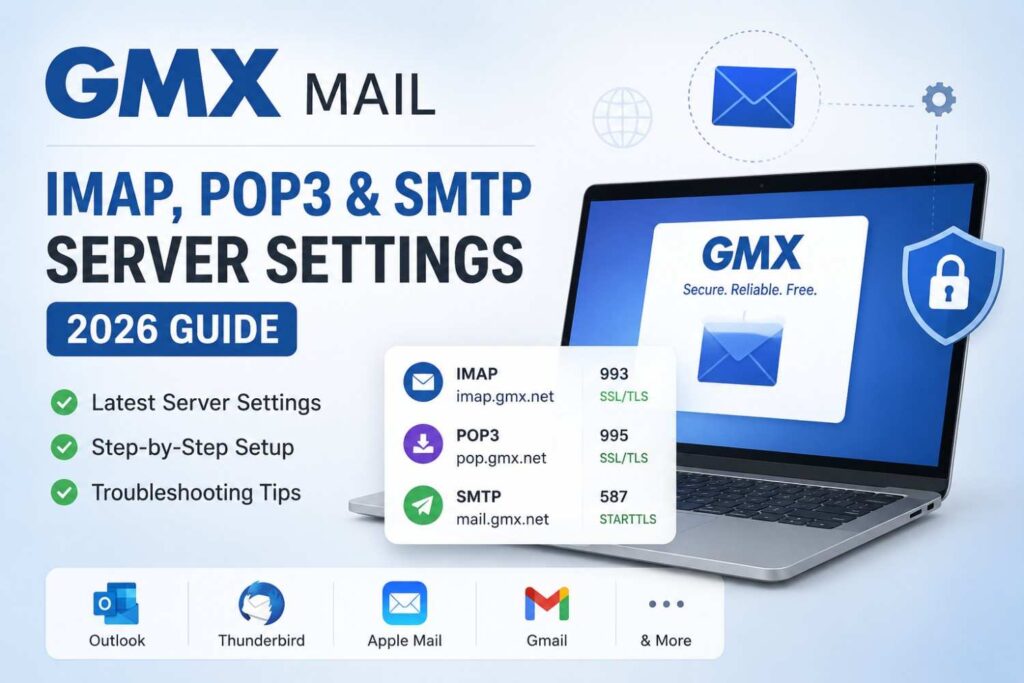
If Outlook is not connecting properly, the issue is often related to incorrect IMAP, SMTP, or app password settings. These detailed setup guides can help users configure different email providers correctly in Outlook and other email clients.
- Yandex Mail Settings (IMAP, SMTP, POP3)
- iCloud Mail Settings for Outlook
- Hotmail IMAP Settings
- Comcast Email Settings
- Spectrum Email Settings
- Yahoo Mail Settings
- Cox Email Settings
- Sky Email Settings (IMAP, SMTP, POP3 & App Password)
- GoDaddy Email Settings
These guides include incoming and outgoing mail server details, port numbers, SSL/TLS settings, authentication methods, and troubleshooting steps for common Outlook connection issues.
Frequently Asked Questions (FAQ)
Is IMAP better than POP in Outlook?
Yes. IMAP keeps emails synced across devices and stored on the server, making it more reliable for modern use.
What port does IMAP use in Outlook?
Port 993 with SSL/TLS encryption.
Why is Outlook not connecting to IMAP?
Common reasons include wrong password, incorrect port, disabled IMAP, or firewall blocking.
Does IMAP delete emails from the server?
No. IMAP keeps emails on the server unless you delete them manually.
Final Thoughts
Setting up an IMAP email account in Outlook is straightforward when you use the correct server settings and encryption. Once configured, IMAP provides:
- Secure server-based storage
- Multi-device synchronization
- Reliable email access
- Business-friendly email management
If you’re managing multiple accounts, planning email migration, or implementing a backup strategy, protecting IMAP data is essential.
SkyMigrate IMAP Backup and Restore Software helps businesses securely back up IMAP mailboxes and restore data when needed — ensuring zero data loss during migration or unexpected issues.