If you’re setting up a Hotmail or Outlook.com account in an email client l
ike Outlook, Thunderbird, Apple Mail, iPhone, or Android, you need the correct Hotmail IMAP and SMTP server settings.
This guide covers the latest Hotmail incoming mail server, outgoing mail server, port numbers, and step-by-step configuration instructions for all major email clients — plus a dedicated troubleshooting section if your setup isn’t working.
Note: Hotmail is now managed through Outlook.com, but your @hotmail.com address continues to work with these settings. The server addresses, ports, and security protocols remain the same whether you use a @hotmail.com, @outlook.com, or @live.com address.
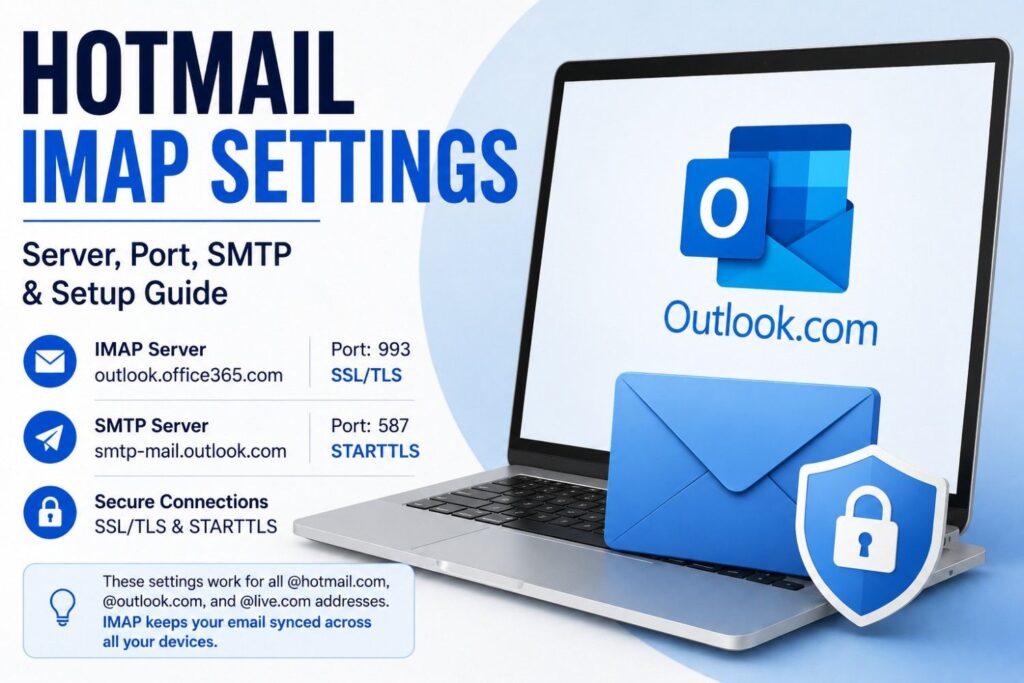
Hotmail IMAP Settings — Quick Summary
| Setting | Value |
| IMAP Server | outlook.office365.com |
| IMAP Port | 993 |
| IMAP Encryption | SSL/TLS |
| Setting | Value |
| SMTP Server | smtp-mail.outlook.com |
| SMTP Port | 587 |
| SMTP Encryption | STARTTLS |
What Are Hotmail IMAP Server Settings?
IMAP (Internet Message Access Protocol) syncs your email across all devices rather than downloading messages to just one. When you read an email on your phone, it automatically appears as read on your laptop.
IMAP does not delete your emails from Microsoft’s servers. It synchronizes your mailbox across devices, so your folders, sent mail, and read status stay consistent everywhere. It is the recommended protocol for anyone using more than one device.
Hotmail IMAP Settings (Incoming Mail Server)
| Setting | Value |
| IMAP Server | outlook.office365.com |
| Port | 993 |
| Encryption | SSL / TLS |
| Username | Your full Hotmail email address |
| Password | Your Hotmail password (or app password if using 2FA) |
Hotmail SMTP Settings (Outgoing Mail Server)
| Setting | Value |
| SMTP Server | smtp-mail.outlook.com |
| Port | 587 |
| Encryption | STARTTLS |
| Username | Your full Hotmail email address |
| Password | Your Hotmail password (or app password if using 2FA) |
These Outlook SMTP settings apply to all @hotmail.com, @outlook.com, and @live.com addresses.
Hotmail POP3 Settings (Optional)
POP3 downloads emails to a single device rather than syncing them. It does not support multi-device synchronization.
| Setting | Value |
| POP3 Server | outlook.office365.com |
| Port | 995 |
| Encryption | SSL / TLS |
| Username | Your full Hotmail email address |
| Password | Your Hotmail password |
IMAP vs POP3: Which Should You Use?
| Feature | IMAP | POP3 |
| Email storage | Server | Local device |
| Sync across devices | Yes | No |
| Access from multiple devices | Yes | No |
| Best for | Most users | Single device only |
IMAP is the right choice for the vast majority of users. POP3 is only worth considering if you have a specific reason to store mail locally on one device and never access it elsewhere.
Check That IMAP Is Enabled
In most modern Outlook.com and Hotmail accounts, IMAP access is enabled by default — you may not need to do anything here.
If your email client cannot connect, verify IMAP access in your Outlook.com account:
- Sign in at Outlook.com
- Click the gear icon (Settings) in the top-right corner
- Select View All Outlook Settings
- Go to Mail → Forwarding and IMAP (Microsoft occasionally changes the exact location of this menu across Outlook.com versions)
- Confirm IMAP access is enabled and save if needed
New Outlook for Windows Warning
The new Outlook for Windows (and the Outlook mobile app) may automatically redirect Hotmail and Outlook.com accounts through Microsoft’s secure sign-in instead of requiring manual IMAP configuration. In most cases, you only need to enter your email address and password — the app handles the rest.
Manual IMAP setup is primarily needed for third-party email clients like Thunderbird, Apple Mail, or older versions of Outlook.
How to Set Up Hotmail IMAP in Outlook (Desktop)
- Open Outlook and go to File → Add Account
- Enter your Hotmail email address
- Select Advanced Options → Let me set up manually
- Choose IMAP
- Incoming server: outlook.office365.com — Port 993 — SSL/TLS
- Outgoing server: smtp-mail.outlook.com — Port 587 — STARTTLS
- Enter your password and click Connect
How to Set Up Hotmail IMAP in Thunderbird
- Open Thunderbird and go to Account Settings → Account Actions → Add Mail Account
- Enter your name, Hotmail email address, and password
- Click Configure Manually
- Set incoming server to IMAP, host: outlook.office365.com, port 993, SSL/TLS
- Set outgoing server host: smtp-mail.outlook.com, port 587, STARTTLS
- Click Done to complete setup
Hotmail IMAP Settings for iPhone and Android
Most mobile email apps support manual configuration. Use these Hotmail email settings in your Mail or Gmail app:
- Incoming: outlook.office365.com — Port 993 — SSL/TLS
- Outgoing: smtp-mail.outlook.com — Port 587 — STARTTLS
Two-Factor Authentication: App Passwords
If two-factor authentication (2FA) is enabled on your Microsoft account, some older or third-party email clients may require an app password instead of your regular Microsoft password. Modern apps like current versions of Outlook typically support Microsoft’s secure OAuth sign-in automatically and do not require this step.
If you’re using an older client and seeing authentication errors with 2FA enabled:
- Sign in at account.microsoft.com
- Go to Security → Advanced Security Options
- Under App Passwords, select Create a new app password
- Copy the generated password and use it in your email client in place of your normal password
See Microsoft’s official app password guide for the most current instructions.
Hotmail IMAP Not Working? Common Fixes
Authentication errors / keeps asking for password
Check whether two-factor authentication is enabled. If so, older clients need an app password rather than your regular password. Modern clients supporting OAuth (like current Outlook builds) handle this automatically.
Wrong port or encryption
Use port 993 with SSL/TLS for incoming IMAP. Use port 587 with STARTTLS for outgoing SMTP. Using the wrong combination is one of the most common causes of connection failures.
IMAP access disabled
IMAP must be enabled in your Outlook.com settings (Mail → Forwarding and IMAP) before any client can connect. Most accounts have this on by default, but it’s worth confirming if nothing else fixes the issue.
Hotmail not syncing across devices
Check that your email client is set to sync all folders, not just the inbox. Some apps default to partial sync and skip folders like Sent, Drafts, or custom folders.
Outdated email client
Some older applications do not support Microsoft’s modern authentication (OAuth). Update your email client to the latest version, or switch to a supported app.
Cannot connect to server
Double-check you’re using outlook.office365.com (not imap.hotmail.com or older server addresses that are no longer active). Also verify your firewall or antivirus is not blocking port 993.
Using These Settings for Email Migration
If you’re migrating emails between platforms — for example, moving from Hotmail to Gmail, or migrating a Hotmail account into Microsoft 365 — correct IMAP configuration is essential for maintaining folder structure, read status, and message history throughout the process.
For official migration guidance, see Microsoft’s Outlook.com support documentation.
Frequently Asked Questions
What is the Hotmail IMAP server?
The Hotmail IMAP server is outlook.office365.com, using port 993 with SSL/TLS encryption.
What is the SMTP server for Hotmail?
The Hotmail SMTP server is smtp-mail.outlook.com, using port 587 with STARTTLS encryption. These are also the correct Outlook SMTP settings for @outlook.com and @live.com addresses.
What port does Hotmail use for IMAP?
Hotmail uses port 993 with SSL/TLS encryption for IMAP connections. This ensures secure communication between your email client and Microsoft’s mail servers.
Is Hotmail still supported in 2026?
Yes. Hotmail accounts were migrated to Outlook.com, but your @hotmail.com address continues to work fully. IMAP, POP3, and SMTP access all remain functional. The Hotmail server settings listed in this guide are current and verified.
Can I use Hotmail with Gmail, Thunderbird, or Apple Mail?
Yes. Configure it using the IMAP settings in this guide and it will work with any major email client.
Why is IMAP better than POP3?
IMAP keeps your inbox synchronized across all your devices. POP3 downloads messages to one device and removes them from the server, which breaks access from any other device.
Do I need an app password for Hotmail?
Only if two-factor authentication is enabled on your Microsoft account and your email client doesn’t support modern OAuth sign-in. Current versions of Outlook and many modern apps handle 2FA automatically. If you’re using an older client, you’ll need to generate an app password from your Microsoft security settings.
What’s the difference between Hotmail IMAP settings and Outlook IMAP settings?
They’re identical. Hotmail and Outlook.com share the same infrastructure. Whether your address ends in @hotmail.com, @outlook.com, or @live.com, you use the same server addresses and port numbers.
Final Thoughts
Setting up a Hotmail account in an email client requires the correct Hotmail incoming mail server and outgoing mail server configuration. The settings in this guide are verified for 2026 and work across Outlook, Thunderbird, Apple Mail, iPhone, and Android.
Key things to remember:
- IMAP server: outlook.office365.com — port 993 — SSL/TLS
- SMTP server: smtp-mail.outlook.com — port 587 — STARTTLS
- IMAP is enabled by default on most modern accounts
- If you have 2FA on an older client, you’ll need an app password
- The new Outlook for Windows often handles Hotmail setup automatically without manual IMAP entry
If you run into issues, the most common culprits are incorrect port/encryption settings, 2FA requiring an app password, or an outdated email client that doesn’t support Microsoft’s modern authentication.