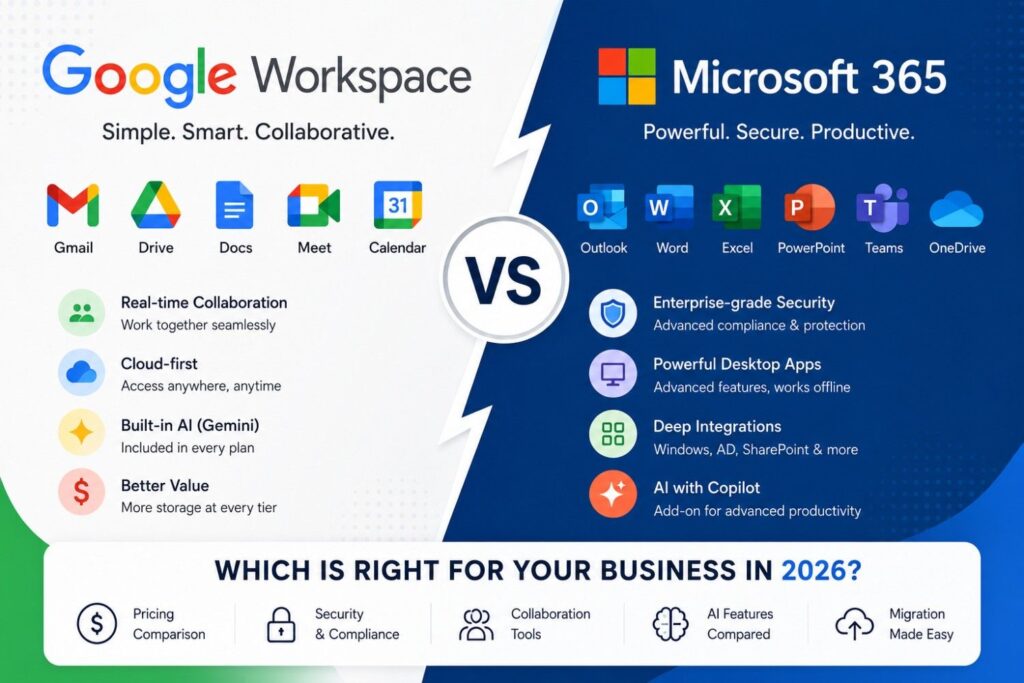
Google Workspace and Microsoft 365 both deliver business email, file storage, video meetings, and office apps for a per-user monthly fee — but they aren’t interchangeable. Microsoft 365 wins on desktop app depth, enterprise security, and offline work. Google Workspace wins on simplicity, real-time collaboration, and lower entry-level pricing.
Here’s the detail that gets buried in most comparisons: at every matching tier, the base license price is now identical. Business Starter/Basic is $7/user/month on both platforms. Business Standard is $14/user/month on both. Business Plus and Business Premium are both $22/user/month. The pricing decision no longer comes down to the base plan — it comes down to what’s bundled with it, especially AI, and that’s where the two platforms genuinely diverge.
This guide breaks down pricing, features, security, and AI tools side by side, includes a decision matrix you can use right now, and covers what migration between the two actually involves.
Quick Verdict
| Category | Winner |
| Best overall | Tie — depends on ecosystem |
| Best for small businesses | Google Workspace (simplicity, lower AI cost) |
| Best for enterprises | Microsoft 365 (compliance, device management) |
| Best email platform | Microsoft 365 (Outlook rules, offline, shared mailboxes) |
| Best real-time collaboration | Google Workspace |
| Best document editing (desktop) | Microsoft 365 |
| Best AI assistant | Microsoft 365 Copilot (task depth), Gemini (bundled value) |
| Best security & compliance | Microsoft 365 |
| Best storage value | Google Workspace (more pooled storage per dollar at mid-tier) |
| Best value for solo/micro business | Google Workspace |
| Best for Microsoft-centric IT shops | Microsoft 365 |
| Best for Google-centric startups | Google Workspace |
Table of Contents
Decision Matrix: Which Platform Fits Your Business?
Skip the feature-by-feature reading and use this instead — match your situation to a row.
| If your company… | Choose |
| Uses Windows PCs company-wide | Microsoft 365 |
| Uses Chromebooks | Google Workspace |
| Lives in complex Excel models | Microsoft 365 |
| Works fully remote, browser-first | Google Workspace |
| Needs strict compliance (HIPAA, finance, legal) | Microsoft 365 |
| Has no dedicated IT staff | Google Workspace |
| Already runs on Gmail | Google Workspace |
| Already uses SharePoint or Active Directory | Microsoft 365 |
| Needs employees to work offline regularly | Microsoft 365 |
| Wants AI included in the base price | Google Workspace |
Google Workspace Overview
Google Workspace is Google’s cloud-first productivity suite built around Gmail, Google Drive, Docs, Sheets, Slides, and Meet. Nearly everything runs in the browser, files save automatically, and multiple people can edit the same document in real time with almost no lag. Gemini, Google’s AI assistant, is bundled into every paid Workspace plan rather than sold separately.
Microsoft 365 Overview
Microsoft 365 combines Outlook, Exchange Online, Word, Excel, PowerPoint, OneDrive, SharePoint, and Teams, with both full desktop applications and browser-based versions. It’s built for organizations that need robust offline functionality, granular admin controls, and deep integration with Windows-based IT environments.
Google Workspace vs Microsoft 365 Pricing
As noted above, base license pricing is now aligned at every matching tier. The real cost difference shows up once you add AI. Google includes Gemini at no extra charge; Microsoft prices Copilot as an add-on or a separate bundled SKU, typically adding another $18–21/user/month on top of a base plan.
Confirm current rates on the official Google Workspace pricing page and Microsoft 365 pricing page before purchasing — both vendors adjust pricing periodically, and Microsoft’s Copilot pricing in particular has changed more than once in 2026. If you’re leaning toward Microsoft, read our Microsoft 365 Plans Comparison to understand the differences between Business Basic, Business Standard, Business Premium, and Enterprise licenses before choosing a subscription. For a closer look at Google’s business email plans, pricing, storage, and billing options, see our Google Workspace pricing and plans guide.
| Plan | Monthly billing | Annual commitment | Storage | AI included? | Desktop apps? | Free trial? |
| Google Workspace Business Starter | $8.40/user | $7/user | 30 GB pooled | Gemini (limited) | No (browser + mobile) | Yes, 14 days |
| Google Workspace Business Standard | $16.80/user | $14/user | 2 TB pooled | Gemini (full) | No (browser + mobile) | Yes, 14 days |
| Google Workspace Business Plus | $26.40/user | $22/user | 5 TB pooled | Gemini (full) | No (browser + mobile) | Yes, 14 days |
| Google Workspace Enterprise | Custom | Custom | Unlimited/custom | Gemini (full) | No (browser + mobile) | Contact sales |
| Microsoft 365 Business Basic | ~$8/user | $7/user | 1 TB OneDrive/user | No (Copilot add-on) | No (browser + mobile) | Yes, 1 month |
| Microsoft 365 Business Standard | ~$16/user | $14/user | 1 TB OneDrive/user | No (Copilot add-on) | Yes | Yes, 1 month |
| Microsoft 365 Business Standard + Copilot | N/A (annual only) | ~$23.50/user | 1 TB OneDrive/user | Yes | Yes | No |
| Microsoft 365 Business Premium | ~$25/user | $22/user | 1 TB OneDrive/user | No (Copilot add-on) | Yes | Yes, 1 month |
| Microsoft 365 Business Premium + Copilot | N/A (annual only) | ~$32/user | 1 TB OneDrive/user | Yes | Yes | No |
Key takeaway: if AI is a must-have from day one, Google Workspace’s all-in price is lower at every comparable tier. If AI is optional for your team right now, the base-plan price parity means the decision comes down to desktop apps and admin controls, not cost.
AI Comparison: Gemini vs Microsoft Copilot
Both assistants write emails, summarize documents, and draft content — but they’re not equally capable across every task. This is one of the fastest-moving parts of either platform, so treat the table below as directional and verify current capabilities before making a purchasing decision based on a specific feature.
| Task | Gemini (Google Workspace) | Copilot (Microsoft 365) |
| Draft/reply to email | Yes | Yes |
| Summarize meetings | Yes (via Meet) | Yes (via Teams) |
| Analyze complex spreadsheets | Limited | Strong |
| Generate a slide deck from a prompt | Good | Strong |
| Draft a document from a prompt | Strong | Strong |
| Search across company files/knowledge | Limited outside Workspace | Stronger, via Work IQ across SharePoint/Exchange/Teams |
| Included in base plan price | Yes, all paid tiers | No, add-on or separate bundle |
| Build custom internal AI agents | Limited (Gemini extensions) | Yes (Copilot Studio) |
The pattern: Gemini is broader and cheaper by default — useful across every app without a separate purchase decision. Copilot is deeper on structured, data-heavy tasks (spreadsheet analysis, cross-platform knowledge search) but costs more and requires deploying it deliberately. Teams searching specifically for “Google Workspace vs Microsoft 365 AI” are usually trying to decide between “AI included everywhere” versus “AI that’s more capable but priced separately” — that’s the real tradeoff. Want to see Copilot in action? Our guide on using Microsoft Copilot in Outlook and Teams shows how businesses automate email drafting, meeting summaries, and daily productivity tasks.
Detailed Feature Comparison
| Feature | Google Workspace | Microsoft 365 |
| Gmail (browser-first) | Outlook (desktop + browser) | |
| Custom domain email | Yes, all paid plans | Yes, all paid plans |
| Offline email | Limited (Gmail offline mode) | Strong (full Outlook desktop client) |
| Document editing | Docs, Sheets, Slides (browser-native) | Word, Excel, PowerPoint (desktop + web) |
| Real-time co-editing | Excellent | Good, improved via OneDrive/SharePoint |
| Video meetings | Google Meet | Microsoft Teams |
| Team chat | Google Chat | Microsoft Teams |
| File storage | Google Drive | OneDrive + SharePoint |
| AI assistant | Gemini (bundled) | Copilot (mostly add-on) |
| Admin console | Google Admin Console | Microsoft 365 Admin Center |
| Device management | Basic (Endpoint Verification) | Strong (Intune, especially on Premium) |
| Offline app support | Weaker | Strong |
| Third-party integrations | Strong via Marketplace | Strong via Microsoft ecosystem and AppSource |
Weighted Scorecard
A rough scoring guide (out of 10) based on typical SMB priorities:
| Category | Google Workspace | Microsoft 365 |
| Collaboration | 10 | 9 |
| Security & Compliance | 8 | 10 |
| Desktop Apps | 6 | 10 |
| AI (breadth + cost) | 9 | 8 |
| Storage Value | 9 | 8 |
| Admin Controls | 8 | 10 |
| Offline Reliability | 5 | 10 |
| Ease of Onboarding | 9 | 7 |
Treat this as a starting point, not a verdict — weight the categories that matter most to your team and the totals will shift accordingly.
Gmail vs Outlook
Gmail favors speed and search — a minimal interface, fast search, and labels instead of folders, letting one email carry multiple tags. Outlook favors depth — nested folders, powerful rule-based automation, and a desktop client that works fully offline. Both support shared mailboxes and aliases on business plans.
If you’re evaluating email specifically, our Outlook IMAP settings guide cover the exact configuration values for connecting either platform to third-party tools or migration software.
Featured snippet opportunity: “Gmail uses labels; Outlook uses folders. Gmail favors browser speed and search; Outlook favors offline access and rule-based automation.”
Google Docs vs Microsoft Word
Google Docs is built for simultaneous editing — comments, suggestions, and version history update instantly. Word offers deeper formatting control, better long-document tools (footnotes, indexing, mail merge), and full offline access. For polished, complex documents — legal contracts, formatted reports — Word leads. For fast-moving collaborative drafts, Docs leads.
Sheets vs Excel
This is the widest gap in the comparison. Excel remains the standard for advanced formulas, pivot tables, Power Query, and large or complex datasets. Sheets collaborates more smoothly in real time but heavy financial modeling and macros still favor Excel.
Slides vs PowerPoint
PowerPoint has more advanced animation, transition, and design tools plus AI-assisted design suggestions; Slides is faster for collaborative building. For polished sales and marketing decks, PowerPoint edges ahead; for quickly co-building a deck, Slides is easier.
Google Meet vs Microsoft Teams
Meet is straightforward video conferencing tied to Calendar and Gmail. Teams is a broader hub — meetings plus persistent chat, file collaboration, and app integrations in one place. Want a single collaboration workspace? Teams offers more. Want lightweight, fast meetings? Meet is simpler.
Google Drive vs OneDrive
Google Drive uses pooled storage shared across your organization. OneDrive assigns storage per user and integrates with SharePoint for structured team libraries. If you’re planning to move files between the two, see our Google Drive to OneDrive migration guide for what actually transfers (and what doesn’t) — folder structure and file version history need specific handling, which we cover in more detail below.
Security Comparison
| Area | Google Workspace | Microsoft 365 |
| Multi-factor authentication | Yes, all plans | Yes, all plans |
| Zero Trust framework | Context-Aware Access (higher tiers) | Entra ID Conditional Access (Premium+) |
| Data Loss Prevention (DLP) | Business Standard and above | Available across most plans via Purview |
| eDiscovery | Vault (Business Plus and above) | Purview eDiscovery |
| Device management | Basic endpoint verification | Intune (strong on Premium) |
| Compliance certifications | SOC 2, ISO 27001, HIPAA-eligible | SOC 2, ISO 27001, HIPAA-eligible, FedRAMP (gov plans) |
Microsoft 365 generally offers more granular device and identity management out of the box, which matters more as headcount and regulatory requirements grow. Before you migrate any regulated data, it’s worth reviewing your Microsoft 365 backup strategy alongside your security setup — backup and native retention are not the same thing, and relying on retention policies alone is a common gap we see in real migration projects.
Always verify current compliance certifications against each vendor’s official trust center, since certifications and scope can change.
Which Platform Is Best For Your Business?
Best for startups
Google Workspace generally wins here. Fast setup, no IT overhead, and AI included in the base price matter more to a five-person team than granular device management. Most startups also don’t have legacy Windows infrastructure to protect, which removes Microsoft 365’s biggest advantage.
Best for agencies
Google Workspace tends to fit better for agencies juggling shared client files and fast-turnaround collaborative work — real-time co-editing in Docs and Sheets reduces the “whose version is this” problem that email attachments create.
Best for law firms
Microsoft 365 is the stronger fit. Word’s document control (track changes, formatting fidelity for court filings, mail merge for templated documents) and Outlook’s offline reliability matter more here than real-time collaboration speed.
Best for healthcare
Microsoft 365’s native compliance tooling and device management give it an edge for HIPAA-relevant workflows, though both platforms can be configured to meet compliance requirements with the right add-ons — verify specifics with your compliance officer before choosing based on this alone.
Best for nonprofits
Both vendors offer nonprofit discount programs, which can make either platform significantly cheaper than list price. Google Workspace’s simpler admin experience is often preferable for nonprofits without dedicated IT staff but check each vendor’s nonprofit eligibility requirements before assuming which discount applies.
Best for education
Google Workspace for Education has broader adoption in K-12 and higher ed, largely due to Chromebook compatibility and simplified device management at scale for large student populations.
Best for enterprises
Microsoft 365 tends to win at enterprise scale due to mature Intune device management, deeper compliance tooling, and existing investment in Windows/Active Directory infrastructure that most enterprises already have.
Common Migration Pain Points
Migration marketing tends to say “you can migrate” without explaining what actually goes wrong. In practice, the issues that cause the most downtime and support tickets are:
- Lost email labels/folders — Gmail labels and Outlook folders don’t map 1:1, so a naive migration can flatten your organizational structure
- Shared Drive permission mismatches — Google Shared Drive permissions and SharePoint/OneDrive permissions use different models, and a direct copy often over- or under-shares files
- Calendar ownership conflicts — recurring meetings and delegated calendars can break or duplicate if organizer ownership isn’t mapped correctly
- Large mailbox throttling — both Google and Microsoft rate-limit large-scale API calls, so mailboxes with years of history can slow a migration significantly without a properly staged approach
- OneDrive path length limits — deeply nested Google Drive folder structures can exceed Microsoft’s path character limits and fail to migrate without restructuring
- User account mapping errors — mismatched usernames or aliases between platforms can leave data orphaned or assigned to the wrong person
- DNS cutover timing — switching MX records too early or too late causes mail to bounce or get delivered to the wrong platform mid-migration
- Unplanned downtime — without a staged migration sequence, users can lose access to email or files during the cutover window
In most migration projects we’ve seen, organizations underestimate the time required specifically for shared drive and permission migration — it’s rarely the email that causes delays, it’s reconciling who has access to what afterward. Planning the migration sequence (and testing permissions on a pilot group before the full cutover) is what actually prevents downtime, more than the speed of the migration tool itself.
How to Migrate Between Google Workspace and Microsoft 365
A typical migration includes:
- Email migration — moving mailbox content, folders/labels, and message metadata
- Contacts and calendars — transferring address books and calendar events without breaking invites
- Google Drive to OneDrive migration (or the reverse) — preserving folder structure, sharing permissions, and file version history
- Shared Drive/SharePoint migration — moving team-owned files and their permission structures
- User provisioning — creating matching accounts and mailboxes in the destination platform
Given the pain points above, automated migration tools like SkyMigrate are built specifically to handle mailbox, contact, calendar, and Drive-to-OneDrive migrations with permission mapping and staged cutover — worth evaluating if you’re planning a full platform switch rather than a manual, DIY move. For a complete walkthrough, read our Google Workspace to Microsoft 365 Migration Guide, covering mailbox migration, calendars, contacts, Google Drive migration, DNS cutover, and post-migration validation.
Frequently Asked Questions
What are the disadvantages of Google Workspace? Weaker offline functionality, less advanced document/spreadsheet formatting compared to Word and Excel, and thinner device management tools at entry-level tiers.
Why do businesses prefer Microsoft over Google? Mostly for offline reliability, deeper Excel capability, and more mature enterprise security and device management — especially in regulated industries or Windows-standardized environments.
Is Google Workspace cheaper than Microsoft 365? Base license pricing is now identical at matching tiers ($7/$14/$22). The cost gap appears once you add AI: Gemini is included in every Google Workspace paid plan, while Microsoft typically charges $18–21/user/month extra for Copilot.
Should I use Google Workspace or Microsoft 365? Choose based on how your team already works — offline-heavy, Excel-dependent, or Windows-standardized teams tend to fit Microsoft 365; browser-first, collaboration-heavy teams tend to fit Google Workspace.
Do I really need Google Workspace (versus free Gmail)? If you’re running a business, yes — Workspace provides a custom domain email address, admin controls, larger storage, and support that a free personal Gmail account doesn’t include.
How much does Google Workspace cost compared to Microsoft 365? Entry and mid-tier base plans are priced identically per user, per month. The gap widens once you add Microsoft’s Copilot add-on, which isn’t a separate purchase decision on the Google side since Gemini is bundled.
Is Google Workspace overpriced? Not compared to Microsoft 365 at equivalent tiers — base pricing is now the same, and Google’s bundled AI narrows the value gap further.
What happens if I cancel Google Workspace? Your organization loses access to Gmail, Drive, and other services tied to your custom domain after the grace period ends, so data should be exported or migrated before cancellation.
Will I lose my emails if I cancel Google Workspace? Yes, eventually — Google retains data for a limited window after cancellation, after which it’s permanently deleted. Export or migrate mailbox data before cancelling.
Is there a better alternative to Google Workspace? “Better” depends on workflow — Microsoft 365 is the main alternative, and is generally a better fit for teams needing offline work, advanced Excel use, or deeper enterprise security controls.
Can Microsoft 365 open Google Docs? Word can open Google Docs files if they’re first exported to .docx format from Google Drive; there’s no native, direct compatibility without that export step.
Can I use Gmail with Microsoft 365? You can forward or sync Gmail into Outlook via IMAP, but Gmail and Microsoft 365 are separate ecosystems — running both long-term for the same organization usually adds complexity rather than removing it.
Can I migrate without downtime? Near-zero downtime is achievable with a staged migration plan (pilot group first, DNS cutover scheduled carefully), but a true zero-downtime migration for large mailboxes is rare — plan for a brief cutover window rather than assuming none is needed.
How long does migration take? It depends heavily on mailbox size, user count, and how much shared/permissioned data needs to move — small teams can migrate in days, while organizations with large Shared Drives or SharePoint libraries often need a multi-week staged plan.
Is Microsoft 365 better than Google Workspace for business email? For offline access, rule-based automation, and enterprise-grade mail filtering, Microsoft 365’s Outlook has an edge; for speed, search, and simplicity, Gmail is often preferred — “better” depends on which of those your team values more.
Conclusion
Google Workspace vs Microsoft 365 isn’t a question with one universal answer — and now that base pricing is identical at every matching tier, the real decision comes down to AI strategy, offline needs, and how deep your Excel or compliance requirements go. Use the decision matrix above as a starting point, and weight the scorecard categories that matter most to your team.
If you’ve decided to switch, the technical migration — mailboxes, contacts, calendars, and shared files — is where most of the risk lives, particularly around permissions and shared drives. SkyMigrate’s automated migration tools are built to move this data between Google Workspace and Microsoft 365 (in either direction) with staged cutover and permission mapping, so your team can start working in the new platform without losing history or access along the way. Businesses planning a larger cloud migration can also explore our Google Workspace Migration solutions for moving mailboxes, shared drives, calendars, and user accounts with minimal downtime.