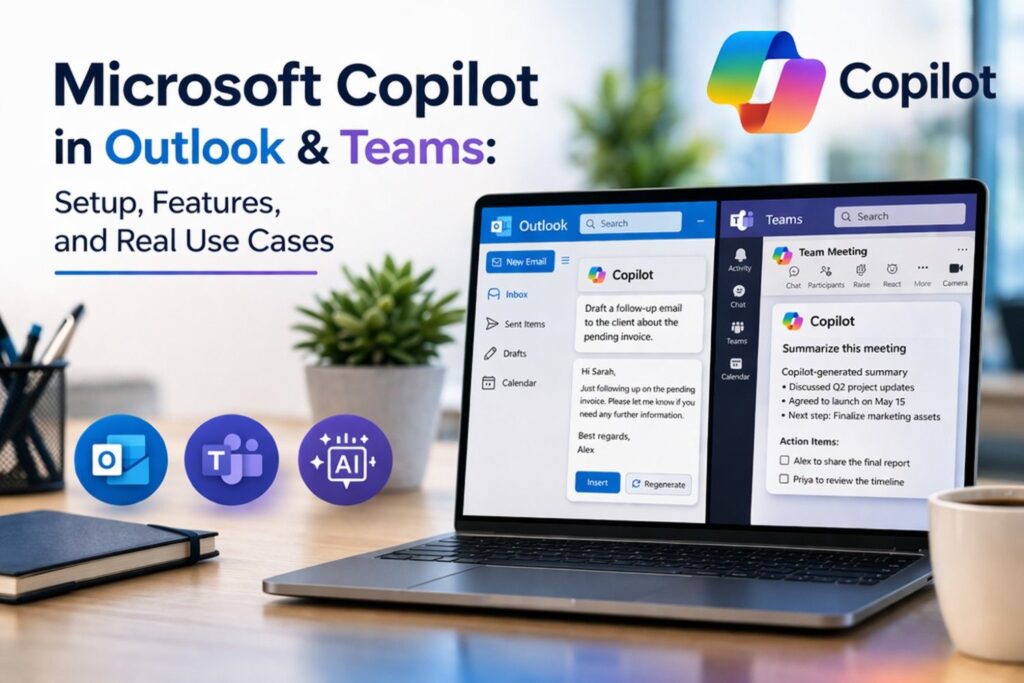
Microsoft Copilot in Outlook and Teams is an AI assistant that helps you draft emails, summarize conversations, and generate meeting insights using your organization’s data. It works directly inside Microsoft 365 apps to improve productivity without switching tools.
Microsoft Copilot is an AI-powered assistant built into Microsoft 365 apps. It uses OpenAI’s GPT technology to help you write emails faster, summarize long conversations, generate meeting notes, and automate repetitive tasks — all without leaving your Outlook or Teams interface.
What makes it different from standalone AI tools like ChatGPT is context-awareness. Copilot works using your organization’s own data — emails, chats, calendars, and files — which means the results it generates are relevant to your actual work, not generic responses.
Before You Start — What You Need
Copilot doesn’t come out of the box with every Microsoft 365 plan. Make sure the following are in place:
- A Microsoft 365 E3, E5, or a plan with Copilot added as an add-on
- A Copilot license assigned by your organization
- Latest version of Outlook and Teams installed
- Microsoft Entra ID (formerly Azure Active Directory) for secure access
- OneDrive account for file and data integration
How to Enable Copilot in Microsoft 365
Copilot is usually enabled by your IT admin. If you are the administrator, follow these steps:
- Sign in to the Microsoft 365 Admin Center
- Go to Billing → Licenses and confirm Copilot is part of your subscription
- Navigate to Users → Active Users and select the user
- Assign them a Copilot license
- Go to Settings → Integrated Apps and verify Copilot is activated organization-wide
Once done, Copilot will be visible inside Outlook and Teams for all licensed users.
Using Microsoft Copilot in Outlook
Copilot in Outlook helps you draft emails, reply faster, summarize long threads, and manage your calendar — saving significant time every day.
Steps to use Copilot in Outlook:
- Open Microsoft Outlook (Desktop or Web)
- Click New Email
- Look for the Copilot icon in the ribbon toolbar
- Click it and type a prompt — for example:
- “Write a follow-up email to a client about a pending invoice”
- “Summarize this email thread in 3 bullet points”
Copilot generates a draft instantly — you can edit, regenerate, or send it as-is.
You can also open any existing email thread and ask Copilot to summarize it or suggest a reply — extremely useful when dealing with long email chains or high inbox volume.
Using Microsoft Copilot in Teams
Copilot in Teams is a productivity game-changer for meetings and group chats. It can summarize conversations, catch you up on missed discussions, and automatically pull action items from meetings.
Steps to use Copilot in Teams:
- Open Microsoft Teams and go to any Chat, Channel, or Meeting
- Look for the Copilot icon inside the chat window
- Type a prompt — for example:
- “Summarize this conversation”
- “What were the action items from today’s meeting?”
- “What decisions were made in the last 7 days in this channel?”
Copilot pulls the key points instantly.
This is especially useful when you join a meeting late, return from leave, or need to catch up across multiple active threads quickly.
What Copilot Can Do Across Microsoft 365
| App | What Copilot Can Do |
| Outlook | Draft emails, summarize threads, suggest replies, schedule meetings |
| Teams | Summarize chats, generate meeting notes, list action items |
| Word | Write documents, rewrite content, create summaries |
| Excel | Analyze data, create formulas, generate charts |
| PowerPoint | Create presentation slides from a simple text prompt |
Why This Matters for Your Organization
Microsoft Copilot reduces the time spent on routine communication tasks. Instead of spending 30 minutes writing a detailed email, Copilot drafts it in seconds. Instead of re-reading an entire meeting transcript, Copilot delivers the highlights in a clean bullet list.
For teams handling large volumes of emails or frequent meetings, this can significantly reduce communication workload — freeing up time for more meaningful work.
Limitations to Know
Copilot is powerful, but it’s not perfect. Keep these in mind:
- Requires proper licensing — not available on basic Microsoft 365 plans without an add-on
- Results depend on data quality — works best with clean, well-organized emails, files, and chats
- Not always accurate — always review AI-generated content before sending
- Requires proper permissions and setup through Microsoft Entra ID
The Migration Connection
Many organizations unlock Copilot’s full potential only after properly migrating to Microsoft 365. Since Copilot pulls intelligence from Outlook emails, Teams chats, and OneDrive files, a well-planned migration ensures it has access to clean, complete, and structured data — which directly impacts the quality of AI-generated results.
A messy or incomplete migration means Copilot works with fragmented data, producing weaker and less relevant outputs.
This is why many businesses consider data cleanup and migration as the first step before adopting AI tools like Copilot.
If you’re planning a move to Microsoft 365, a well-executed migration becomes critical. You can explore how this works in detail in our Microsoft 365 migration guide, along with specific resources like Outlook migration and IMAP to Microsoft 365 migration.
Frequently Asked Questions
Q1. Is Microsoft Copilot available in all Microsoft 365 plans?
No, Copilot is available as an add-on for enterprise plans like Microsoft 365 E3 and E5.
Q2. Can Copilot access all my emails and chats?
Copilot only accesses data based on your existing permissions within Microsoft 365.
Q3. Does Copilot work in Outlook Web and Desktop?
Yes, Copilot works in both versions, depending on your subscription and updates.
Q4. Is Copilot better than ChatGPT?
Copilot is different — it uses your internal work data, while ChatGPT provides general-purpose responses.
Final Thoughts
Microsoft Copilot is one of the most practical AI tools available today — and the best part is it works directly inside Outlook and Teams, the tools your team already uses every day.
Set it up once, and it becomes an invisible productivity layer across your entire Microsoft 365 workflow.
The key to getting the most out of Copilot? Start with a well-structured Microsoft 365 environment — and that begins with a clean, complete migration.