If you want to access your iCloud Mail Settings account in an email client such as Microsoft Outlook, Mozilla Thunderbird, iPhone Mail, or Android, you need the correct IMAP and SMTP server settings. These settings allow your email client to securely connect to Apple’s mail servers and synchronize messages, folders, and attachments across devices.If you’re unable to receive new emails while configuring iCloud Mail, check whether your iCloud storage is full, as this can prevent new messages from arriving. See our guide on iCloud storage full not receiving emails for troubleshooting.
These settings work for all iCloud email addresses: @icloud.com, @me.com, and @mac.com.
iCloud Mail Settings — Quick Summary
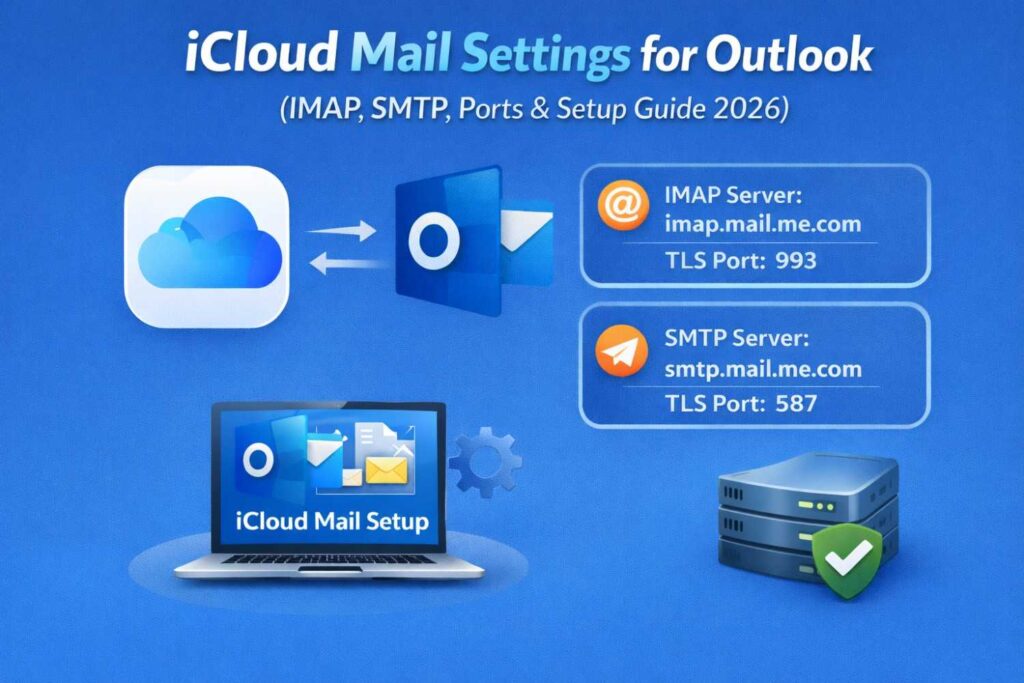
Here are the key iCloud server settings at a glance:
- IMAP Server: imap.mail.me.com
- IMAP Port: 993
- IMAP Encryption: SSL/TLS
- SMTP Server: smtp.mail.me.com
- SMTP Port: 587
- SMTP Encryption: STARTTLS
Important: iCloud Mail requires an app-specific password for all third-party email clients. Your regular Apple ID password will not work. See the section below before attempting setup.
iCloud IMAP Settings (Incoming Mail Server)
| Setting | Value |
| IMAP Server | imap.mail.me.com |
| Port | 993 |
| Encryption | SSL/TLS |
| Username | Your full iCloud email address |
| Password | App-specific password |
iCloud SMTP Settings (Outgoing Mail Server)
| Setting | Value |
| SMTP Server | smtp.mail.me.com |
| Port | 587 |
| Encryption | STARTTLS |
| Username | Your full iCloud email address |
| Password | App-specific password |
Step 1: Generate an App-Specific Password (Required)
Apple requires an app-specific password for any third-party email client connecting to iCloud Mail. This is not optional — your regular Apple ID password will be rejected. Complete this step before configuring any email client.
- Go to appleid.apple.com and sign in with your Apple ID
- Under Sign-In and Security, click App-Specific Passwords
- Click the + icon or Generate App-Specific Password
- Enter a label such as “Outlook Mail” or “Thunderbird”
- Copy the generated password — you will need it during email client setup
Store this password somewhere safe. Apple will not show it again. If you lose it, you can revoke it and generate a new one.
Step 2: Enable IMAP in iCloud Settings
Before configuring any email client, make sure IMAP access is enabled for your iCloud account:
- Go to iCloud.com and sign in
- Click your name in the top-right and select iCloud Settings
- Scroll to Mail and make sure iCloud Mail is turned on
- On a Mac: go to System Settings → Apple ID → iCloud → enable Mail
- On iPhone/iPad: go to Settings → [your name] → iCloud → toggle Mail on
How to Set Up iCloud Mail in Outlook
- Open Outlook and go to File → Add Account
- Enter your iCloud email address (@icloud.com, @me.com, or @mac.com)
- Select Advanced Options → Let me set up manually
- Choose IMAP
- Incoming server: imap.mail.me.com — Port 993 — SSL/TLS
- Outgoing server: smtp.mail.me.com — Port 587 — STARTTLS
- Under Outgoing Server settings, check “My outgoing server (SMTP) requires authentication” and select “Use same settings as incoming mail server”
- Enter your app-specific password and click Connect
How to Set Up iCloud Mail in Thunderbird
- Open Thunderbird and go to Account Settings → Account Actions → Add Mail Account
- Enter your name, iCloud email address, and app-specific password
- Click Configure Manually
- Set incoming server: Protocol IMAP, host imap.mail.me.com, port 993, SSL/TLS
- Set outgoing server: host smtp.mail.me.com, port 587, STARTTLS
- Set authentication method to Normal Password
- Click Done — Thunderbird will verify the connection and begin syncing your mailbox folders.
How to Set Up iCloud Mail on iPhone
If you use an iPhone, the easiest method is to add iCloud through iOS Settings directly. However, if you need manual IMAP configuration:
- Go to Settings → Mail → Accounts → Add Account
- Tap iCloud and sign in with your Apple ID for automatic setup, OR tap Other for manual IMAP setup
- For manual setup: tap Add Mail Account, enter your details, then select IMAP
- Incoming Mail Server: imap.mail.me.com — Port 993 — SSL on
- Outgoing Mail Server: smtp.mail.me.com — Port 587 — SSL on
- Use your app-specific password when prompted
- Tap Next and allow iOS to verify the connection
How to Set Up iCloud Mail on Android
- Open your email app and tap Add Account
- Select Other or Personal (IMAP)
- Enter your iCloud email address and tap Manual Setup
- Choose IMAP account type
- Incoming server: imap.mail.me.com — Port 993 — SSL/TLS
- Outgoing server: smtp.mail.me.com — Port 587 — STARTTLS
- Enter your app-specific password and tap Next to complete setup
IMAP vs POP3: Which Should You Use?
iCloud Mail supports both IMAP and POP3 for incoming mail. Here’s how they compare:
| Feature | IMAP | POP3 |
| Email storage | Server | Local device |
| Sync across devices | Yes | No |
| Access from multiple devices | Yes | No |
| Best for | Most users | Single device only |
IMAP is recommended for almost all users. If you access iCloud Mail on more than one device, IMAP ensures everything stays in sync. POP3 is only worth considering if you store email locally on a single machine with no need for synchronization.
Using iCloud IMAP for Email Migration
If you’re migrating emails from iCloud Mail to another platform — such as Gmail, Outlook 365, or another provider — correct IMAP settings are essential for a complete and accurate transfer. Proper configuration ensures your messages, folders, and read status all carry over correctly. Incorrect server settings or missing app-specific passwords are the most common causes of incomplete iCloud email migrations.
For organizations or users handling large mailboxes, manual IMAP migration can sometimes lead to skipped folders, slow transfers, or authentication errors. In such cases, using a dedicated IMAP migration or IMAP backup solution can make the process more reliable. Tools like SkyMigrate IMAP Migration help transfer emails directly between servers while preserving folder structure and metadata, and IMAP Backup ensures you have a safe copy of your mailbox before starting the migration.
This approach is especially useful when moving iCloud emails to platforms like Microsoft 365, Gmail, or other IMAP-supported services, where maintaining message integrity and avoiding data loss is critical.
Common iCloud Mail Setup Issues and Fixes
Authentication errors / password rejected: This is by far the most common issue. iCloud Mail does not accept your regular Apple ID password in third-party clients. You must generate an app-specific password at appleid.apple.com and use that instead. If you already generated one but it’s still failing, revoke it and generate a fresh one.
Wrong port or encryption: Use port 993 with SSL/TLS for incoming IMAP. Use port 587 with STARTTLS for outgoing SMTP. Mixing up ports or encryption types is a common source of connection failures.
iCloud Mail not enabled: If iCloud Mail is not turned on in your Apple ID or iCloud settings, the IMAP server will reject all connections. Confirm Mail is toggled on in iCloud settings on both your Apple devices and at iCloud.com.
Outgoing mail (SMTP) failing but incoming works: Check that SMTP authentication is enabled in your email client. In Outlook, go to More Settings → Outgoing Server and confirm “My outgoing server requires authentication” is checked. Use the same credentials as the incoming server.
Firewall or antivirus blocking connection: Some security software blocks outgoing connections on port 587. Temporarily disable your firewall or antivirus to test. If that resolves it, add an exception for your email client in your security software settings.
Emails not syncing across devices: Confirm your email client is set to sync all folders, not just the inbox. Some applications default to partial sync. Also check that your iCloud storage is not full, as a full iCloud account can stop receiving new mail. If you’re seeing this issue, follow our detailed guide on iCloud storage full not receiving emails to learn why it happens and how to fix it.
@me.com or @mac.com address not working: These older Apple email addresses use identical server settings to @icloud.com. Enter the full @me.com or @mac.com address as your username and use an app-specific password — the same setup process applies.
Frequently Asked Questions
What is the iCloud IMAP server address? The iCloud IMAP server is imap.mail.me.com using port 993 with SSL/TLS encryption.
What is the iCloud SMTP server? The iCloud SMTP server is smtp.mail.me.com using port 587 with STARTTLS encryption.
Why does Outlook ask for a password repeatedly for iCloud? This usually means the app-specific password was entered incorrectly or has been revoked. Go to appleid.apple.com, revoke the old app password, generate a new one, and update it in Outlook.
Do @me.com and @mac.com use the same settings? Yes. All Apple email addresses — @icloud.com, @me.com, and @mac.com — use the same IMAP and SMTP server settings.
Can I use iCloud Mail in Thunderbird? Yes. Use the manual IMAP configuration in this guide with an app-specific password and iCloud Mail will work in Thunderbird.
Is two-factor authentication required for iCloud Mail? Apple strongly recommends two-factor authentication, and if it is enabled, an app-specific password is mandatory for third-party clients. Even without 2FA, Apple may still require an app-specific password for email client access.
Can I access iCloud Mail on Android? Yes. Use the IMAP settings in this guide to configure iCloud Mail on any Android email app. An app-specific password is required.
Why am I not receiving emails even though my iCloud Mail settings are correct? Correct IMAP and SMTP settings are only one part of the setup. If your iCloud storage has reached its limit, Apple may stop delivering new emails until you free up space or upgrade your storage plan. Read our guide on iCloud storage full not receiving emails for step-by-step solutions.