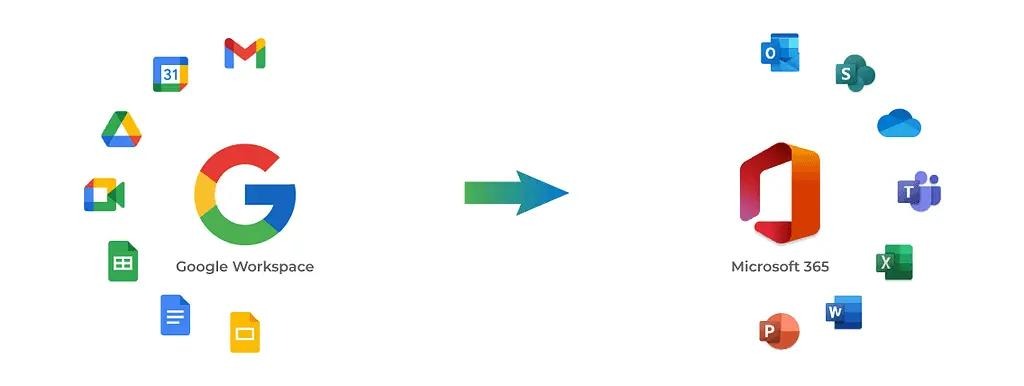
Migrating from Google Workspace (formerly G Suite) to Microsoft 365 is a common move for organizations looking to improve collaboration, security, and scalability. However, without proper planning, the migration process can become complex and time-consuming.
In this guide, we’ll break down Google Workspace to Microsoft 365 migration methods, step-by-step IMAP migration, limitations, and best practices to help you ensure a smooth transition.
Why Choose Google Workspace to Microsoft 365 Migration?
Businesses are increasingly switching to Microsoft 365 for its enterprise capabilities. Here’s why:
- Seamless integration with Microsoft Teams, SharePoint, and OneDrive
- Advanced security and compliance features
- Larger mailbox storage and archiving options
- Enterprise-grade productivity and collaboration tools
Google Workspace to Microsoft 365 Migration Methods
Microsoft offers multiple migration methods depending on your requirements:
1. IMAP Migration (Most Common Method)
- Migrates emails only
- Best for small to mid-sized organizations
- Easy to set up but has limitations
Important: IMAP migration does NOT migrate contacts or calendars
2. Native Google Workspace Migration (API-Based)
- Migrates emails, contacts, and calendars
- Recommended for enterprise environments
- Requires admin permissions and configuration
3. Third-Party Migration Tools
- Automated and faster migration process
- Advanced filtering, scheduling, and reporting
- Ideal for large-scale or complex migrations
Step-by-Step Google Workspace to Microsoft 365 Migration (IMAP Method)
Follow these steps to perform an IMAP-based migration:
Step 1: Verify Your Domain
- Add your domain in Microsoft 365
- Verify using DNS (TXT record)
Step 2: Create Users in Microsoft 365
- Add users and assign licenses
- Ensure mailboxes are ready before migration
Step 3: Prepare Google Workspace Accounts
- Enable 2-Step Verification
- Generate App Passwords for each user
- Required for secure authentication
Step 4: Create Migration CSV File
Include the following details:
- Email address
- Username
- App password
Microsoft allows up to 50,000 mailboxes per batch
Step 5: Create Migration Endpoint
- Go to Exchange Admin Center
- Select IMAP migration
- Enter Gmail IMAP server details
Step 6: Start Migration Batch
- Upload CSV file
- Start migration
- Monitor progress and sync status
Step 7: Update MX Records
- Point your domain to Microsoft 365
- Allow up to 72 hours for DNS propagation
Step 8: Finalize Migration
- Stop the migration batch
- Confirm users are accessing Microsoft 365
Step 9: Migrate Contacts & Calendars
- Export data from Google Workspace
- Import into Outlook manually
Limitations of Google Workspace to Microsoft 365 IMAP Migration
- Only emails are migrated
- No contacts, calendars, or Drive data
- Email rules and labels are not transferred
- Slower performance for large data volumes
Native vs Professional Migration Tools
| Feature | Native IMAP Migration | Professional Tools |
| Email Migration | ✅ Yes | ✅ Yes |
| Contacts & Calendars | ❌ No | ✅ Yes |
| Automation | Limited | Advanced |
| Speed | Slow | Fast |
| Error Handling | Basic | Detailed logs |
| Scalability | Limited | Enterprise-level |
Best Practices for Google Workspace to Microsoft 365 Migration
- Start with a pilot migration batch
- Migrate users in small batches
- Disable archiving policies before migration
- Inform users before switching MX records
- Monitor bandwidth and migration performance
When Should You Use a Professional Migration Tool?
Consider using a professional solution if:
- You have large mailboxes or many users
- You need zero downtime migration
- You want to migrate Drive, Contacts, and Calendars together
- You require automation, scheduling, and reporting
Final Thoughts
The native Microsoft method works well for basic email migration scenarios. However, it has clear limitations when dealing with enterprise environments or full data migration.
For a successful Google Workspace to Microsoft 365 migration, combining proper planning with advanced migration tools ensures better speed, accuracy, and minimal disruption.
FAQ: Google Workspace to Microsoft 365 Migration
1. Does Google Workspace to Microsoft 365 migration include all data?
No, IMAP migration only transfers emails. Contacts and calendars must be migrated separately.
2. How long does migration take?
It depends on mailbox size and internet speed. Large migrations can take several days.
3. Can I migrate multiple users at once?
Yes, batch migration allows multiple users via CSV upload.
4. Is downtime required during migration?
Minimal downtime occurs when updating MX records.
5. What is the biggest limitation of IMAP migration?
It does not support full data migration and lacks automation features.