If Thunderbird has suddenly stopped pulling in new Gmail messages, or it keeps popping up a login window that never seems to “stick,” you’re not imagining things. This is one of the most common complaints we hear from Thunderbird users, and in nearly every case it traces back to one thing: Google’s authentication rules, not a bug in Thunderbird itself.
Here’s the short version — Google retired password-based sign-in for third-party apps a while back, and Thunderbird now has to use OAuth2 to talk to Gmail. When that handshake breaks, or when a setting underneath it gets misconfigured, Thunderbird either stalls silently or throws an error about invalid credentials. The good news is that almost every version of this problem can be fixed in under ten minutes once you know where to look.
Table of Contents
Why Thunderbird Stops Working With Gmail
Before jumping into fixes, it helps to know what’s actually going wrong. In our experience, the issue almost always comes down to one of these five things:
1. IMAP is switched off in Gmail. Thunderbird can’t sync anything if Gmail isn’t allowed to expose your mailbox over IMAP. This setting lives inside Gmail itself, not Thunderbird, so it’s easy to overlook.
2. OAuth2 isn’t set correctly. Gmail no longer accepts a plain username-and-password login from desktop email clients. If Thunderbird’s authentication method is still set to “Normal Password” instead of OAuth2, the connection will be rejected outright.
3. A saved (and now outdated) password is stuck in Thunderbird’s password manager. This happens more than you’d expect — Thunderbird tries to reuse an old token or password behind the scenes, and it quietly fails instead of asking you to log in again.
4. You’re running an old version of Thunderbird. Builds older than version 91 don’t support Google’s OAuth2 flow properly, so no amount of fiddling with settings will fix it — the client itself needs updating.
5. Antivirus or firewall software is blocking the connection. Some security suites inspect or intercept outbound mail traffic, which can quietly break the handshake between Thunderbird and Gmail’s servers without showing an obvious error.
Solutions to Fix Thunderbird Not Working With Gmail
1. Confirm IMAP Is Enabled in Gmail
- Log into Gmail in a browser and open Settings → See all settings
- Go to the Forwarding and POP/IMAP tab
- Under IMAP Access, select Enable IMAP
- Click Save Changes, then restart Thunderbird
2. Switch Thunderbird’s Authentication to OAuth2
- In Thunderbird, open Account Settings
- Select your Gmail account, then go to Server Settings
- Check that the Authentication method is set to OAuth2 for both incoming and outgoing servers
- Save, then quit and reopen Thunderbird — you should see a Google sign-in window appear
3. Clear Out Saved Passwords
- Go to Tools/Menu → Settings → Privacy & Security
- Scroll down to Saved Passwords and click Show Passwords
- Remove any old Gmail entries
- Restart Thunderbird and sign in again from scratch — this alone resolves a surprising number of “authentication failed” errors
4. Update Thunderbird
- Click Help → About Thunderbird
- Let it check for and install any pending update
- Restart the app once the update finishes
5. Remove and Re-Add the Gmail Account
If none of the above works, a clean re-add often does the trick:
- Go to Account Settings → Account Actions → Remove Account
- Restart Thunderbird
- Choose Add Mail Account, enter your Gmail address, and complete the Google sign-in prompt when it appears
6. Rule Out Antivirus or Firewall Interference
- Temporarily disable any “email scanning” or “web shield” feature in your antivirus software
- Restart Thunderbird and check if mail starts syncing
- If that fixes it, add Thunderbird as a trusted/allowed application instead of leaving your antivirus disabled long-term
Quick Reference: Gmail Server Settings for Thunderbird
| Setting | Incoming (IMAP) | Outgoing (SMTP) |
| Server | imap.gmail.com | smtp.gmail.com |
| Port | 993 | 465 |
| Connection Security | SSL/TLS | SSL/TLS |
| Authentication | OAuth2 | OAuth2 |
Back Up Before You Troubleshoot Further
One thing worth doing before you start removing accounts or changing authentication settings: back up your Thunderbird mailbox first. If a sync error or a bad re-configuration causes local messages to go missing, having a backup means you’re not starting from zero. This is especially worth doing if your Gmail account has years of email history or you rely on Thunderbird for work correspondence.
Frequently Asked Questions
Has Gmail stopped supporting Thunderbird? No. Gmail still works fine with Thunderbird — what changed is how it authenticates. OAuth2 is now required instead of a plain password, which is why older setups suddenly stop working.
Why does Thunderbird keep asking for my Gmail password? Usually because OAuth2 isn’t configured correctly, or a stored token has expired. Removing the saved password and re-authenticating through the Google sign-in window fixes this in most cases.
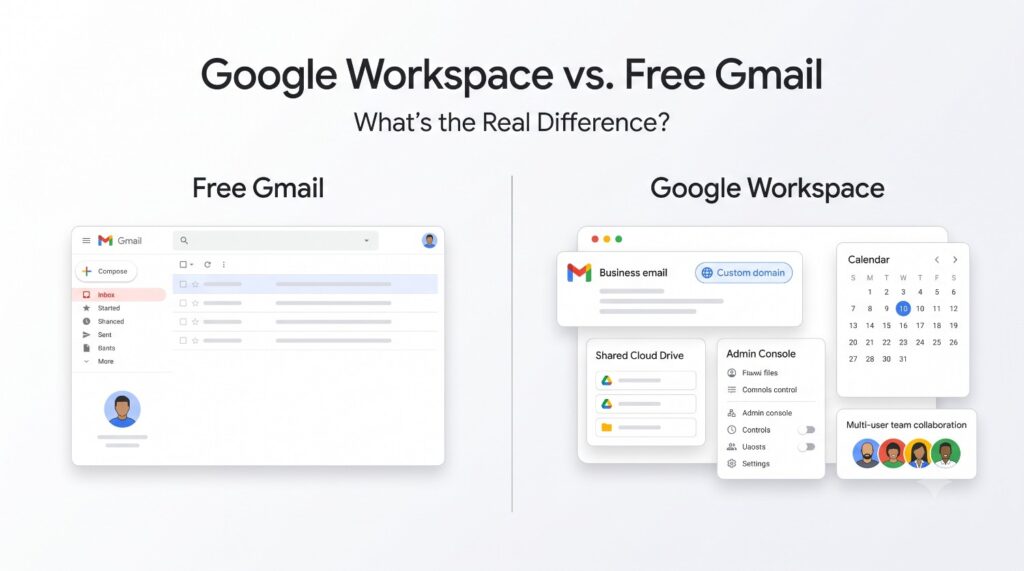
My Gmail is a Google Workspace (business) account — what’s different? Workspace admins can restrict which third-party apps are allowed to connect. If Thunderbird is being blocked, you’ll need your IT admin to allow it as a trusted OAuth application.
Is there a way to avoid this Gmail dependency altogether? If you’re tired of fighting authentication issues every time Google updates its security policy, migrating your mailbox to a platform with more predictable third-party support is worth considering. A tool like SkyMigrate can move your emails, folders, and metadata between providers without the manual IMAP wrangling.
Related Guides You Might Find Useful
If you’ve worked through every step above and Thunderbird still won’t sync with Gmail, the problem is very likely on Google’s side — a Workspace restriction, a flagged sign-in attempt, or a temporary service issue. In that case, check Gmail’s security alerts in a browser first; Thunderbird can’t fix what Google itself is blocking.