Switching jobs, merging accounts, or just tired of juggling two inboxes? You’re not alone. Thousands of people search for how to move Gmail emails to another account every month, and most give up halfway through because Gmail’s settings menu isn’t exactly beginner-friendly.
The good news is that you don’t need to be an IT expert to do this right. Whether you want to copy a few folders or move ten years of email history, there’s a method that fits your situation. This guide walks you through every option — from Gmail’s built-in tools to Google Takeout to fully automated migration — so nothing gets lost along the way.
Table of Contents
Why Move Emails Between Gmail Accounts?
People move Gmail data for a few common reasons:
- They created a new personal account and want old emails carried over.
- They’re leaving a job and need to keep copies of their own work correspondence.
- They’re merging two personal accounts into one.
- A business is consolidating Google Workspace mailboxes after a merger or rebrand.
Whatever the reason, the goal is the same: move everything over without missing a single email, attachment, or folder.
Before You Start: A Quick Checklist
A little prep saves a lot of stress later.
- Confirm the destination account has enough free storage.
- Turn on IMAP in both Gmail accounts (Settings → See all settings → Forwarding and POP/IMAP).
- If 2-Step Verification is on, generate an app password.
- Back up important emails before you begin, just in case.
- Use a stable internet connection for large mailboxes.
- Don’t delete the old account until you’ve verified the transfer.
Method 1: Gmail’s Built-In Import Tool
This is the easiest way to learn how to transfer emails from one Gmail account to another without installing anything.
- Sign in to the new (destination) Gmail account.
- Go to Settings > See all settings > Accounts and Import.
- Under “Import mail and contacts,” click Import mail and contacts.
- Enter your old Gmail address and follow the on-screen sign-in and permission prompts.
- Choose whether to import contacts, mail, or both, then start the import.
Google says this can take up to a few days depending on the amount of data, according to Google’s own help documentation. It works well for smaller mailboxes, but very large accounts sometimes stall or time out.
Method 2: Use an Email Client (IMAP Method)
If Method 1 struggles with your data size, an email client like Outlook or Thunderbird can act as a bridge between two Gmail accounts using the IMAP protocol, as defined in the official IMAP4rev2 standard (RFC 9051).
- Open your email client and add your old Gmail account using IMAP settings.
- Add your new Gmail account the same way.
- Once both accounts are connected and fully synced, select the folders in the old account.
- Drag and drop them into the corresponding folders in the new account.
This method preserves folder structure well, but it’s slower for large mailboxes and needs both accounts to stay connected until the copy finishes. Our guide on Gmail IMAP settings covers the exact server and port details if you get stuck.
Method 3: Auto-Forwarding for New Mail
This won’t move old emails, but it answers a slightly different question: how to transfer emails from one Gmail account to another automatically going forward.
- Open the old account’s Settings > Forwarding and POP/IMAP.
- Click Add a forwarding address and enter the new Gmail address.
- Verify the confirmation code sent to the new account.
- Choose Forward a copy of incoming mail to [new address] and save.
From this point on, every new email lands in both inboxes automatically. Pair it with Method 1 or 2 to handle your existing messages.
Method 4: Google Takeout for Full Data Export
Google Takeout is Google’s official export tool, and it’s the best route when you want everything — mail, contacts, calendar, Drive files, and Photos — in one archive.
- Go to takeout.google.com while signed into the source account.
- Select Mail (and any other services you need).
- Choose your export format and delivery method, then click Create export.
- Once Google emails you the download link, save the archive.
- Import the resulting .mbox file into the new account using an email client, since Gmail doesn’t accept .mbox files directly.
Takeout is thorough, but it’s a manual, multi-step process, and very large exports can take hours to generate.
How to Transfer Google Drive Data from One Gmail Account to Another
Drive files need a separate step from email:
- In the source account, open Google Drive.
- Select the files or folders you want to move.
- Right-click and choose Share, then add the new account as an Editor.
- Sign in to the new account, locate the shared files, and select Add to My Drive (or use “Make a copy” for files you plan to edit independently).
For a full Drive migration with folder structure and permissions intact, see our detailed Google Drive migration guide.
How to Move Emails on Android
Wondering how to move emails from one Gmail account to another on Android? The core methods stay the same, but the mobile app limits what you can do directly.
- The Gmail app doesn’t support the “Import mail and contacts” feature — that’s a desktop-only setting.
- You can add both accounts to the Gmail app and manually forward important emails one by one.
- For a proper bulk transfer, open a mobile browser, switch to “Desktop site,” and follow Method 1 or Method 4 from there.
- Business users can also check how to transfer data from one Google account to another on Android through their device’s account sync settings, though this mainly covers contacts, photos, and app data rather than full Gmail archives.
How to Transfer Gmail Storage to Another Account
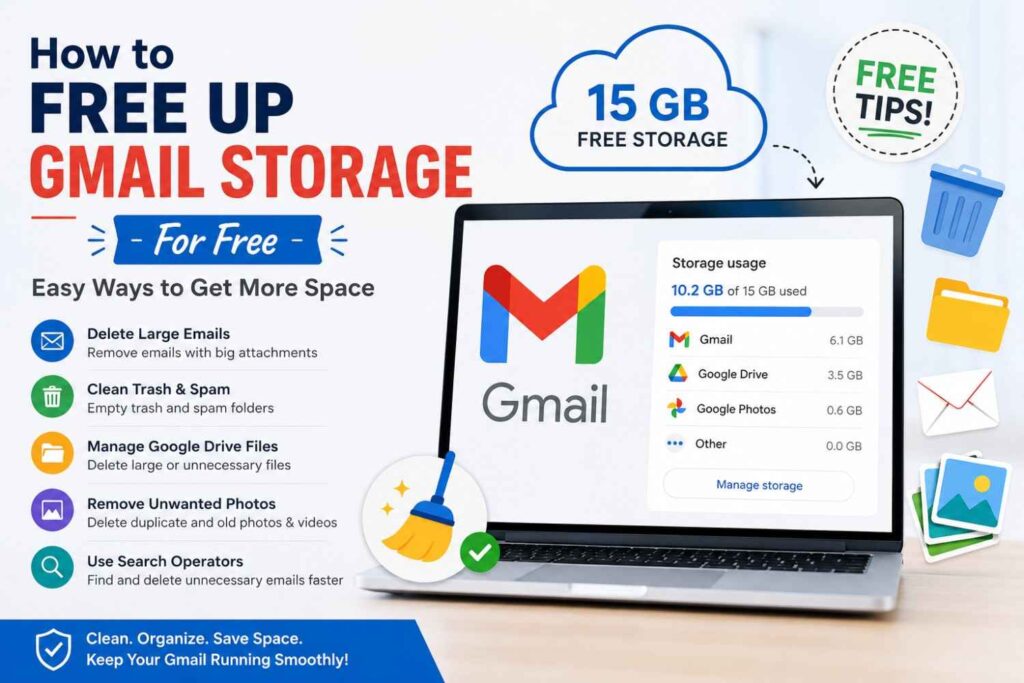
Here’s something people often misunderstand: you can’t directly transfer your storage quota from one Gmail account to another. Google storage is tied to the account itself, split across Gmail, Drive, and Photos.
What you can do is free up space on the source account and shift the actual files:
- Delete large attachments and empty Trash and Spam folders.
- Move Drive files to the new account using sharing and ownership transfer.
- Use Google’s storage manager at one.google.com/storage to see what’s taking up space before you migrate.
- If you need more room, consider upgrading the destination account’s Google One plan rather than trying to “move” quota.
Automatic, No-Data-Loss Transfer for Businesses
Manual methods work fine for one personal mailbox. They get risky once you’re moving dozens of employee accounts, years of archived mail, or a full Google Workspace domain.
That’s where a managed migration service like SkyMigrate fits in. Instead of babysitting IMAP syncs or waiting on Takeout exports, an automated process handles:
- Bulk mailbox mapping via CSV, so hundreds of users move in one project.
- Folder hierarchy, labels, and read/unread status preserved exactly.
- Pre-migration checks and post-migration validation, so nothing silently fails.
- Google Drive, Shared Drive, and Google Workspace data moved alongside email.
If you’re a business owner or IT admin planning a larger move, our Google Workspace Migration service is built for exactly this scenario, with zero data loss as the baseline requirement, not an upsell.
Manual vs Automatic: Quick Comparison
| Feature | Manual (Import Tool / IMAP / Takeout) | Automatic (SkyMigrate) |
| Best for | 1 personal account | 1 to thousands of mailboxes |
| Setup time | Low, but slow to complete | Slightly higher, but hands-off after setup |
| Folder structure preserved | Sometimes | Always |
| Handles large mailboxes (50GB+) | Often struggles or times out | Built for it |
| Drive + email together | Requires separate steps | Handled in one project |
| Support if something fails | Self-service, forums | 24/7 expert support |
| Data loss risk | Higher with large or complex mailboxes | Minimized with validation checks |
Common Mistakes to Avoid
- Deleting the old account too soon. Wait until you’ve confirmed every folder transferred correctly.
- Skipping IMAP setup. Both accounts need it enabled before an email client can connect.
- Ignoring storage limits. A full destination inbox will silently reject new mail.
- Ignoring attachments. Some export formats compress or strip large attachments — check the file sizes after import.
- Not testing with a small batch first. Move one folder before committing to the whole mailbox.
Frequently Asked Questions
Can I transfer emails from one Gmail account to another without losing labels and folders? Yes, if you use IMAP with an email client or a dedicated migration tool. Gmail’s basic import feature sometimes flattens labels, so check your folder structure carefully after any transfer.
How long does it take to move Gmail emails to another account? It depends on mailbox size. A few hundred emails can finish in minutes, while accounts with tens of gigabytes may take several hours or even a couple of days using manual tools.
Does Google Takeout delete my original emails? No. Google Takeout only creates a copy of your data. Your original emails stay exactly where they are in the source account.
Can I transfer emails from one Gmail account to another without forwarding? Yes. Auto-forwarding only handles new incoming mail. For existing emails, use the Import Mail feature, an IMAP email client, or Google Takeout instead.
Is there a limit on how much data I can move at once? Gmail’s built-in import tool can be slow with very large accounts and sometimes stalls. For big mailboxes or business-wide moves, an automated migration service handles bulk transfers more reliably.
Conclusion
Moving Gmail emails to another account doesn’t have to feel like a gamble. For a single personal inbox, Gmail’s Import Mail feature, an IMAP client, or Google Takeout will get the job done with a bit of patience. For businesses moving multiple mailboxes, Google Drive files, or an entire Google Workspace domain, an automatic, zero-data-loss migration is worth the extra step.
Whichever path fits your situation, back up first, test with a small batch, and confirm everything landed before closing the old account. If your migration involves more than a personal mailbox, SkyMigrate’s team can plan and run the whole project for you, so nothing gets left behind.
Ready to move without the guesswork? Talk to a SkyMigrate migration specialist →