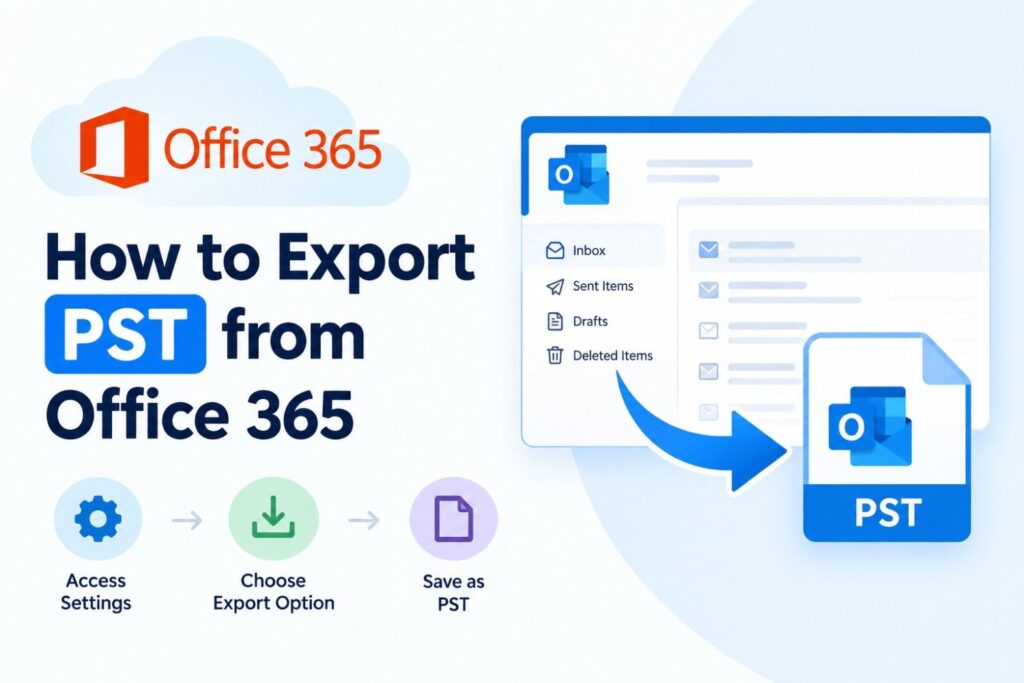
To export emails from Outlook to a PST file in classic Outlook for Windows, go to File → Open & Export → Import/Export → Export to a file → Outlook Data File (.pst), choose the mailbox or folder, check Include subfolders, pick a save location, and select Finish. The export creates a copy. Your original emails stay where they are.
A PST (Personal Storage Table) file is a single file that holds Outlook items such as emails, and often contacts and calendar entries, so you can keep, move, or restore them outside your live mailbox.
Which method you use depends on your Outlook version:
- Classic Outlook for Windows: use the Import/Export wizard (steps below). This is the most complete option.
- New Outlook for Windows: use Settings → Files → Export, if your build shows it. Availability and features have been changing; see the section on new Outlook.
- Outlook on the web: there is no direct PST export. Use desktop Outlook instead.
- Outlook for Mac: exports to. olm, not PST.
- Many mailboxes or compliance exports: an administrator uses Microsoft Purview eDiscovery.
Table of Contents
What Is a PST File in Outlook?
PST stands for Personal Storage Table. It is a container file that Outlook can read and write. Outlook uses two kinds of local data files:
- PST: a portable file you create on purpose, for backups, archives, or moving mail between computers.
- OST: an offline cache that Outlook builds automatically for Exchange, Microsoft 365, and Outlook.com accounts. It mirrors the server mailbox and is not meant to be copied or opened as a backup.
‘Outlook Data File’ is Microsoft’s umbrella name for both types, so an Outlook Data File is not always a PST, but a .pst file is always an Outlook Data File.
PST files are not obsolete. Classic Outlook still supports them, and Microsoft has been adding PST support to new Outlook. What has changed is that Microsoft 365 users also have server-side options (online archive, retention, backup services), so PST is one choice among several, not the only one.
Before You Export Outlook Emails to PST
A few checks prevented most failed or incomplete exports:
- Confirm your Outlook version. If you see a File tab in the ribbon and the classic menus, you are in classic Outlook. If you see Settings (gear icon) and no File tab, you are in new Outlook or on the web.
- Let the mailbox finish syncing. For Exchange and Microsoft 365 accounts, Outlook exports what it can access locally. Cached Exchange Mode settings, sync windows, and items that exist only online can affect what lands in the file. Open the folders you care about and confirm they show your older mail before you start.
- Check free space. The PST will be roughly as large as the data you export. Make sure the destination drive has comfortable headroom.
- Check permissions. You can only export what your account can open. Shared mailboxes, delegate access, and archive mailboxes are not automatically included, and an organization may restrict PST export by policy.
- Know what is not included. An export is a copy of mail items. Rules, signatures, and account settings are not part of a PST.
How to Export Outlook Emails to a PST File (Classic Outlook for Windows)
Menu names can differ slightly between Outlook 2016, 2019, 2021, 2024, and Microsoft 365 builds.
- Open Outlook and select File.
- Select Open & Export, then Import/Export.
- Choose Export to a file and select Next.
- Choose Outlook Data File (.pst) and select Next.
- Select the account or folder to export. To export only part of a mailbox, click that folder (for example, Inbox or a project folder).
- Check Include subfolders if you want everything beneath the selected folder. Leaving it unchecked exports only the top-level folder.
- To export a narrower set of messages, use Filter to limit by date, sender, or keywords.
- Select Next, then Browse to choose where to save the file and name it something descriptive, such as Mailbox-Backup-2026-10.pst.
- Under Options, choose how duplicates are handled: replace duplicates with items exported, allow duplicates, or do not export duplicates. For the first export to a new file, the default is fine.
- Select Finish. If prompted, add an optional password. Understand that a PST password is a light deterrent, not strong encryption. Store the file somewhere secure.
Exporting a folder versus a full mailbox
- Selected folder: click the folder in step 5 and, if needed, check Include subfolders.
- Full mailbox: click the top-level mailbox name (usually your email address) and check Include subfolders.
How to Export an Entire Outlook Mailbox to PST
Select the top-level account in the wizard with Include subfolders checked, as above. A few clarifications matter, particularly for Microsoft 365:
- One account at a time. If your profile has several accounts, repeat the export for each.
- Contacts and calendar are separate folders. They are included when you export the top-level mailbox with subfolders.
- Shared mailboxes and archive mailboxes appear only if they are added to your Outlook profile, and even then, you should verify what the export contains.
- Administrator-managed export is a different tool. Microsoft 365 admins can export one or many mailboxes with Microsoft Purview eDiscovery: create a content search, then use Export results. This needs the right eDiscovery roles (including the Export role) and uses Microsoft’s export tool for download. Exact portal labels change, so follow Microsoft Learn’s current eDiscovery export instructions. For a step-by-step admin walkthrough, see our guide to exporting PST from Office 365.
How to Create a PST File and Move Emails into It
These are four different tasks:
| Task | What happens |
| Export | Copies existing mail into a new PST. Source mail stays in place. |
| Create an empty PST | Make a blank Outlook Data File you can add to your profile. |
| Move to a PST | Drags or messages move into the PST, which removes them from the source mailbox. |
| Archive | Moves older items into a PST on a schedule or on demand (auto Archive/Archive). |
To create an empty PST in classic Outlook: on the Home tab, select New Items → More Items → Outlook Data File, name the file, and select OK. The new data file appears in your folder list.
To move emails into it: drag messages or folders onto the PST in the folder pane, or right-click and choose Move. If you want to keep a copy in the mailbox as well, hold Ctrl while dragging, or use an export instead.
How to Archive Outlook Emails to a PST File
Archiving and exporting are not the same. Classic Outlook’s Archive feature (under File → Info → Cleanup Tools → Archive) moves older items into an archive PST, which removes them from the mailbox. Auto Archive can do this on a schedule if it is enabled, and organizations may disable it.
If you only want a backup, use Export. If you want to reduce mailbox size, archive, and confirm that the PST is backed up elsewhere first.
An online archive mailbox in Microsoft 365 is server-side storage, not a PST. It is separate features and does not create a local file.
Can You Export Outlook to PST From New Outlook or the Web?
New Outlook for Windows
Microsoft’s current support page says to go to Settings → Files → Export, then follow the wizard to select a mailbox or specific folders. The same page says new Outlook can browse and manage emails in a .pst file and lets you drag and drop emails between PST files and mailboxes.
Some limits and caveats of this research:
- Calendar and contact items stored in a PST were listed as not available in new Outlook. Microsoft’s roadmap listed calendar and contact import as in development with a June 2026 target; confirm its status before promising it to readers.
- Microsoft’s roadmap lists email import from a PST as launched (general availability March 2026 for the standard cloud, April 2026 for GCC), yet Microsoft’s own support page still carried a note saying import is not supported. These sources conflict, and rollout is gradual. If you cannot find the option, use classic Outlook.
- One independent test found the export slow for large folders, so allow extra time.
- Administrators may control PST behavior through policy, so the option can be missing in managed environments.
If your new Outlook has no Export option, switch back to classic Outlook using the toggle and use the wizard above. If classic Outlook is not installed, install it from your Microsoft 365 account.
Outlook on the web
I found no direct PST export in Outlook on the web. Practical alternatives:
- Add the same account to desktop Outlook, let it sync, then export from there. Microsoft’s own instructions for exporting an Outlook.com mailbox follow this approach.
- Save individual messages as files from the browser when you only need a few.
- For many mailboxes, ask an administrator to use Purview eDiscovery.
Downloading or viewing mail in a browser is not the same as creating a mailbox backup in PST format.
Outlook for Mac
Legacy Outlook for Mac exports to an .olm file, not a PST, according to Microsoft’s Outlook.com export guidance. If you specifically need a PST, add the account to Outlook for Windows and export from there. I did not verify what the newest Outlook for Mac builds offer, so check Microsoft’s current Mac documentation before publishing a definitive statement.
How to Find the Exported PST File
You chose the location during export. If you did not note, it:
- Check the folder you browsed to in step 8, and the default Documents\Outlook Files folder.
- Search File Explorer for *.pst.
- In classic Outlook, go to File → Account Settings → Account Settings → Data Files. Select a PST and choose Open File Location. This works for files already added to your profile.
Our separate guide covers finding PST file locations in Outlook in more depth.
Verify the export: check that the file size is plausible, then open it in Outlook (File → Open & Export → Open Outlook Data File) and compare folder names and a few older messages against the source.
How to Open or Import a PST File in Outlook
These are not the same tasks:
- Open (attach): adds the PST to your folder list so you can browse it. Nothing is copied into your mailbox. Use File → Open & Export → Open Outlook Data File.
- Import: copies items from the PST into a mailbox. Use File → Open & Export → Import/Export → Import from another program or file → Outlook Data File (.pst), then choose how to handle duplicates. Pick Do not import duplicates if you may already have some of the mail.
To view a PST without Outlook, you can only use software from vendors you can verify and avoid uploading private mailboxes to unknown websites. If possible, open it in Outlook instead.
How to Move a PST File to Another Computer or a USB Drive
- Close Outlook so the file is not in use.
- Copy the .pst file to the USB drive or network location. Do not move the only copy until you have checked the new one.
- Confirm the copied file’s size matches the original.
- On the new computer, open Outlook and use Open Outlook Data File to attach it or import to merge it into a mailbox.
- Keep at least one more backup of important archives, since USB drives fail.
PST files are not encrypted by default and may contain sensitive data, so store them accordingly.
Why Can’t I Export Emails from Outlook?
Work through the likely causes in this order. These are probable causes, not guarantees:
- No File tab or Export option: you are probably in new Outlook or on the web. Try Settings → Files → Export, or switch to classic Outlook.
- Option is present but blocked: your organization may restrict PST exports by policy. Ask your administrator.
- Items missing: the mailbox may not be fully synced, including subfolders may be unchecked, or a filter may be active.
- Export stops or fails check destination disk space and that the folder is writable. Try a local drive rather than a network location.
- File is damaged or will not open: close Outlook and run Microsoft’s Inbox Repair Tool (SCANPST.EXE) on the PST, then retry.
- Large mailbox: export in smaller batches, such as by folder or date range, and be patient.
Frequently Asked Questions
Does exporting delete emails from Outlook? No. Export creates a copy. Moving or archiving can remove items from the source.
What is the best way to export emails from Outlook? For one person’s mailbox, classic Outlook’s Import/Export wizard is the most complete method. For many mailboxes, administrators should use Microsoft Purview eDiscovery.
Can I mass export emails from Outlook? Yes, by exporting the top-level mailbox with Include subfolders, or by using admin-level eDiscovery across multiple mailboxes.
How do I save all my Outlook emails to my desktop or a flash drive? Export to a PST and choose the Desktop or the USB drive as the save location or copy the finished file there afterward.
Is an Outlook data file the same as a PST? Not exactly. ‘Outlook Data File’ covers both PST and OST. PST is the portable one you create.
Can you still use PST files with Microsoft 365? Yes. Classic Outlook supports them, and new Outlook support is expanding, but features differ by version.
How do I convert an Outlook data file to PST? A PST already is an Outlook Data File. If you have an OST, do not copy it. Export the mailbox from Outlook to a new PST instead.
Can new Outlook move emails into a PST folder? Microsoft’s support page describes drag-and-drop between PST files and mailboxes in new Outlook, but availability varies by build. Verify in your own installation.
Is there a free way to do this? Yes. The built-in wizards in Outlook cost nothing beyond your Outlook license. Paid tools mainly help with bulk, recurring, or cross-platform jobs.
Conclusion
For a single mailbox, classic Outlook’s export wizard is still the most dependable route to a PST. New Outlook is catching up, but features differ by build, and the web and Mac versions need a workaround. Verify the file before you delete anything.
If you are exporting large mailboxes, hitting recurring errors, or planning a broader backup or migration, SkyMigrate can help with Microsoft 365 backup and migration planning. You can reach the team through the contact page.