| Quick Answer To create a Yahoo App Password, sign in to your Yahoo account, go to Security > External Connections, click Create App Password, enter an app name, and generate the password. Use the generated password instead of your regular Yahoo password when setting up Outlook, Thunderbird, Apple Mail, or other third-party applications. |
If you use Yahoo Mail with Outlook, Thunderbird, Apple Mail, or an email backup tool, you have probably seen an authentication error when trying to connect. The fix is simple: you need to create a Yahoo App Password.
This guide walks you through the exact steps to generate a Yahoo App Password, where to use it, and what to do if the option is missing from your account.
Table of Contents
What Is a Yahoo App Password?
A Yahoo App Password is a unique 16-character password that allows third-party applications to access your Yahoo Mail account securely. It replaces your regular Yahoo password when using email clients, backup software, or migration tools.
Yahoo introduced App Passwords as part of its account security model. Rather than giving an external app your main credentials, you generate a separate code for that app alone. If you ever need to cut off its access, you simply revoke that one password without touching your main account.
When Do You Need a Yahoo App Password?
You need a Yahoo App Password in any of the following situations:
- Connecting Yahoo Mail to a desktop email client such as Outlook, Thunderbird, or Apple Mail
- Configuring Yahoo Mail in applications that require manual IMAP or POP settings
- Running an email backup tool or migration software that requires your Yahoo credentials
- Using any application that does not support direct Yahoo sign-in or OAuth
| Before You Start Verify that your Yahoo Mail account is active and accessible. If you’re planning to use Yahoo Mail with Outlook, Thunderbird, Apple Mail, or another email client, make sure you have the correct Yahoo IMAP and SMTP settings ready. See our complete Yahoo Mail Settings Guide for the latest IMAP, SMTP, and POP3 configuration details. |
Steps to Create a Yahoo App Password
Follow these steps carefully. Note: Yahoo’s interface may change slightly over time, so some labels or menu positions may look slightly different in your account.
- Sign in to Yahoo Mail. Click your profile icon in the top-right corner of the page and select Manage your account.
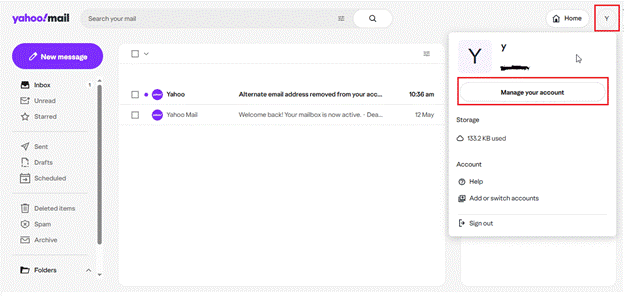
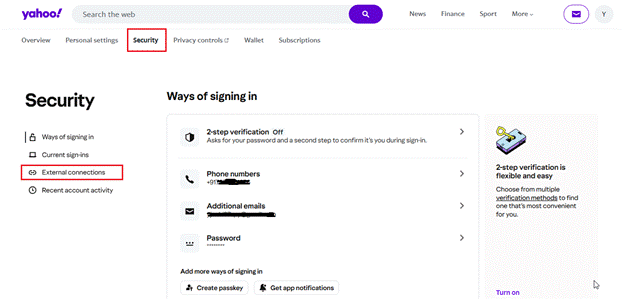
- Navigate to Security > External Connections.
In your Yahoo Account settings, open Security from the left menu and then select External Connections, where you can manage third-party app access and generate app passwords.
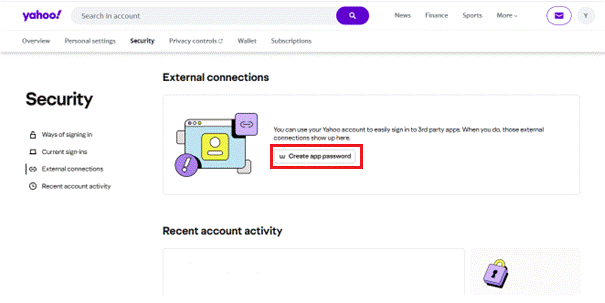
- Click ‘Create app password’. In the App Passwords section, click the Create app password button to start generating a new password.
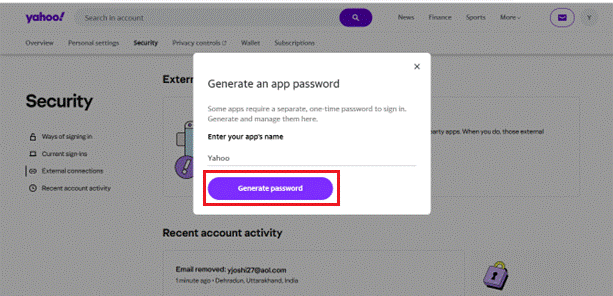
- Name your app password. Enter a descriptive name for the application — for example, Outlook, Thunderbird, or Backup Tool. This label helps you identify the password later if you need to manage or delete it. Click Generate Password.
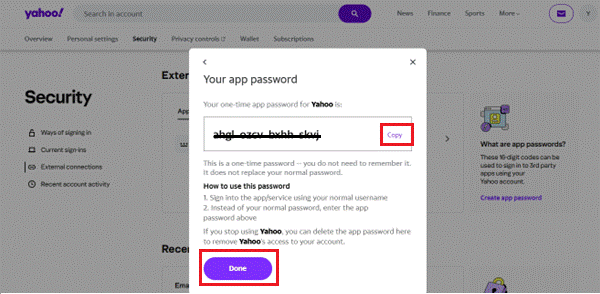
- Copy and save the password. Yahoo will display a unique 16-character app password on screen. Click Copy Password and store it in a secure location such as a password manager. Then click Done.
| Security Tip Never share your Yahoo App Password with anyone. If you believe it has been exposed, revoke it immediately from your Yahoo Security settings and generate a new one. |
That is all there is to it. You can now use this password to connect Yahoo Mail to your chosen application.
How to Use the Generated Yahoo App Password
Once you have copied the generated password, open your email client or backup tool and go to its account settings. When prompted for your Yahoo password, enter the app password you just generated instead of your regular Yahoo account password.If Outlook still rejects your Yahoo account after using an App Password, see our guide on fixing Yahoo Mail not working in Outlook for additional troubleshooting steps.
Important: The app password is only shown once. If you close the window before copying it, you will need to generate a new one. Store it securely as soon as you see it.
The app password works exactly like your regular password for that specific application. You do not need to change it unless you revoke it or generate a new one.
Using Yahoo App Passwords with Backup and Migration Tools
Many email backup and migration applications require a Yahoo App Password to access mailbox data securely. When the application prompts you for your Yahoo credentials, enter the generated App Password instead of your regular Yahoo account password.
This applies to tools that export Yahoo Mail to formats such as PST, MBOX, or EML, as well as migration platforms that transfer your mailbox to a different provider. If you see an authentication error or a login failed message in any of these tools, generating a new Yahoo App Password is the first step to resolve it.
- Yahoo authentication error fix
- Yahoo Mail login failed in Outlook — use an App Password instead of your main password
- Yahoo Mail backup — required for most third-party export tools
- Yahoo to Gmail or Office 365 migration — app password needed for mailbox access
Can’t Find the Create App Password Option?
If you do not see the Create app password button in your Yahoo account, here are the most common reasons:
- Depending on your account configuration, Yahoo may require additional account verification before App Passwords become available.
- Your Yahoo account may be managed by a business or school. Administrator policies can restrict app password creation.
- Yahoo’s settings layout may differ slightly depending on your region, browser, or account type.
- The option may have moved to a different part of the Security menu. Look for ‘App passwords’ or ‘Third-party access’ if you do not see it immediately.
For the most accurate and up-to-date guidance, visit Yahoo’s official App Password help page to verify current steps for your account type.
Frequently Asked Questions
Q: Is a Yahoo App Password safe?
A: Yes. App passwords are designed for exactly this use case. They allow a specific application to access your Yahoo Mail without exposing your main account password. If an app is ever compromised, you can revoke just that app password without changing your main login.
Q: Can I create multiple Yahoo App Passwords?
A: Yes. Yahoo allows you to generate a separate app password for each application you use. It is a good practice to create a unique password for each tool — for example, one for Outlook and a separate one for your backup software. This way you can revoke access for a single app without affecting the others.
Q: Can I delete an App Password later?
A: Yes. Go back to the App Passwords section in your Yahoo Security settings. You will see a list of all active app passwords with the names you assigned. Click the delete or revoke option next to any password you want to remove. That app will immediately lose access to your Yahoo Mail.
Q: Does the app password expire?
A: Yahoo app passwords do not expire automatically. They remain active until you revoke them manually. However, if you reset your main Yahoo password, all existing app passwords are invalidated and you will need to generate new ones.
Q: My Yahoo mailbox is full. What should I do?
A: If you’re running out of storage space, review large attachments, empty Trash and Spam folders, and remove unnecessary emails. Our guide on How to Clean Yahoo Mail provides step-by-step instructions to free up mailbox storage.
Conclusion
Creating a Yahoo App Password takes less than two minutes and solves most authentication issues with Outlook, Thunderbird, Apple Mail, and email backup or migration tools. Sign in to your Yahoo account, go to Security, open External Connections, and click Create app password — that is the entire process.
Once generated, copy the password immediately and store it in a secure password manager. You will only see it once, and keeping it safe means you will not need to repeat these steps if you set up the same application on a new device.